NetMonkeys / Audio visual services

Audio visual installation: connect the room, equipment and people

NetMonkeys designs, supplies and installs audio visual systems for organisations that need meetings, presentations and shared spaces to work properly. Bring your AV, equipment supply, network and workplace technology requirements into one coordinated project.

The right starting point is the activity your people need to complete: a customer meeting, a lesson, a patient briefing, a workshop or a staff announcement. A product list alone cannot establish whether a room will work. Our audio visual consultants help turn those activities into a practical specification and a clear installation brief.

  • Design and equipment supply
  • Installation and integration
  • Practical handover and support
people on conference table looking at talking woman
Christina @ wocintechchat.com M / Unsplash. Illustrative photograph.
Quick answer

What is included in Audio Visual Installation?

Audio visual installation is the planning, mounting, connection, configuration and testing of equipment used to present sound and images. It can include displays, cameras, microphones, speakers, room controls and presentation connections. A complete service also addresses power, cabling, network access, user training and the arrangements for maintaining the system.

Begin with the result you need from the space and the people who will operate it. NetMonkeys will help identify the equipment, installation tasks and IT dependencies that belong in the proposal.

A brief built around your organisation

Where this project needs particular attention

Audio visual services with a clear owner

Design, audiovisual equipment supplies and installation need to connect. Otherwise, the screen supplier may blame the network and the network supplier may blame the room equipment. We establish the interfaces between those responsibilities and make the next action clear when work crosses suppliers.

Audio visual technology people can operate

A room is successful when an occasional user can join, present and finish without guessing. We consider the controls, supported connections and operating instructions alongside sound and image quality. Features earn their place by supporting a real task.

A UK audio visual company connected to your IT

NetMonkeys combines AV services with business IT, Microsoft 365, network cabling, Wi-Fi and workplace security systems. We can discuss those requirements together while confirming the technical boundaries and delivery arrangements for each part of the work.

Match the technology to the activity

Spaces and uses we can assess

Meeting rooms

Video calls, guest presentations and everyday collaboration.

Training and education

Teaching, demonstrations, group work and accessible content.

Commercial premises

Customer information, staff briefings and reception displays.

Specialist spaces

Healthcare, transport, retail and community requirements assessed against their operating context.

These examples establish the design conversation, rather than a fixed equipment package. Tell us which uses are essential and which would be optional. A feature that is rarely needed should not make every normal session harder to start.

From design to day-to-day use

Our audio visual services

Bring the room, equipment and supporting infrastructure into one brief. The capabilities below can be combined into a project or used to define a specific improvement to an existing space. The proposal confirms the work included and the parties responsible for each dependency.

Room assessment and AV design

We review the activities, seating, viewing distances and operating requirements before selecting equipment. The output should explain what the room will support, what needs changing and which assumptions need a survey or confirmation from another supplier.

Audiovisual equipment supplies

Equipment supply can include displays, cameras, microphones, speakers, controls and presentation accessories. Compatibility matters across the complete system. We identify the proposed components, warranty arrangements and any items you are retaining, so an apparently small omission does not hold up the room.

Installation and configuration

An audio visual installer needs a usable plan for mounting, cable routes, power and device configuration. We coordinate the agreed work with your site contacts and identify any specialist building or electrical tasks required. The project scope makes those responsibilities clear.

Connection to business IT

Network-connected equipment needs appropriate access, accounts and administration. We discuss the requirements with your IT team or provider and identify dependencies on cabling, switches, wireless coverage and meeting-platform settings. The AV design should work with the technology estate rather than bypass it.

Testing and user handover

A successful test uses normal users, realistic content and the intended connections. We check the agreed room workflows and record outstanding items. Handover includes practical operating guidance and information for the people who will support the installation.

Support and maintenance

Choose support around the importance of the room and the cover you need. Confirm service hours, remote troubleshooting, on-site attendance, updates and replacement arrangements in the agreement. Manufacturer warranties and an ongoing support service should be explained separately.

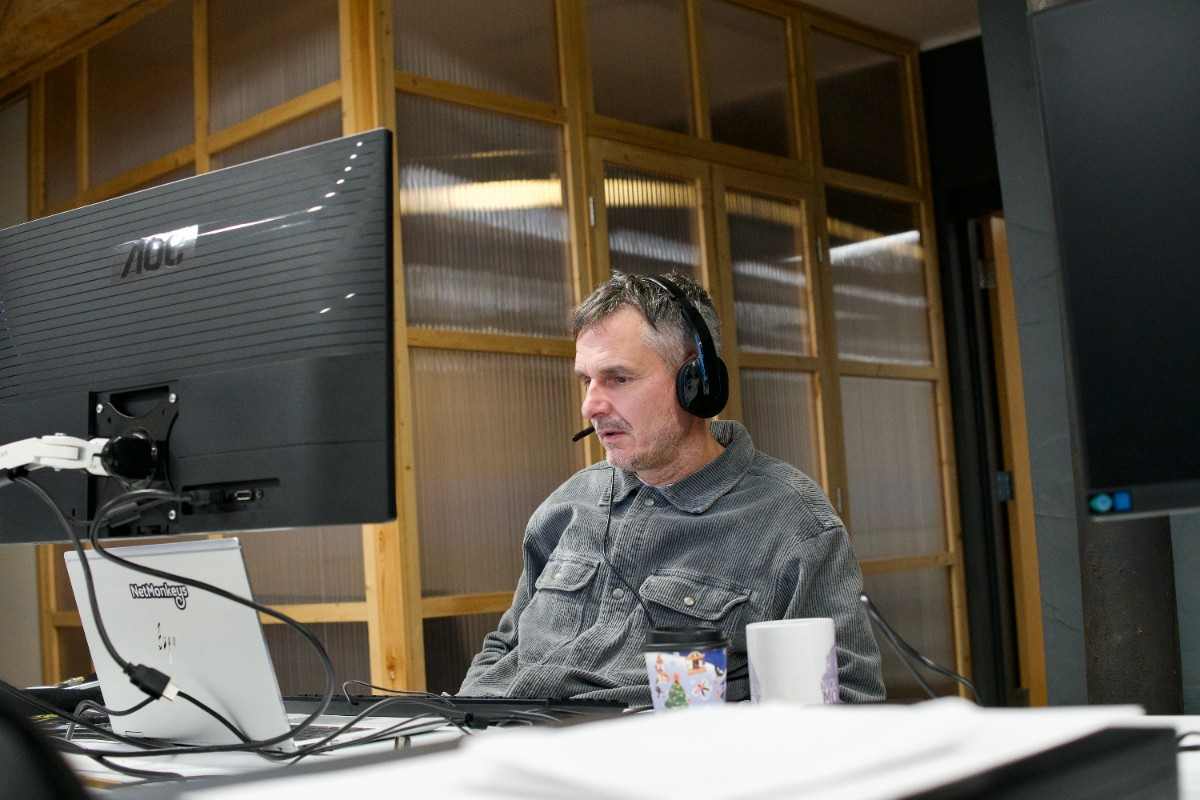
NetMonkeys team member
NetMonkeys team photography. Illustrates the people and activities behind our services.
Usability comes first

Make the normal task easy to repeat

Ask an occasional user to start the session, share content and finish. That simple exercise often reveals the problems hidden by a demonstration from the installer’s own laptop. Controls need to be understandable, connections accessible and the finish sequence clear.

When a space is shared, users should know where to find instructions and how to report an issue. Support staff need a record of the installed equipment and the configuration they are authorised to change. These details make a system easier to manage after the initial installation.

Review your room requirements

For a more detailed room brief, explore AV Solutions for Meeting Rooms and Training Room AV Solutions. These pages help connect this project with the specific activity your users need to complete.

Evidence before sign-off

How to test whether the installation works

Acceptance should follow the activities in your brief. Test the normal seating positions and representative content, with the actual connection methods users will have. Where remote participation is required, include someone outside the room in the check.

Practical acceptance checks for the agreed AV design
CheckWhat to demonstrateWhy it matters
SoundSpeech from normal positions, including audience contributions where required.People can follow the conversation without repeated explanations.
Image and contentRepresentative text, diagrams or shared material from the furthest normal seat.A technically working display can still be difficult to read.
ConnectionsSupported devices and an agreed visitor or temporary-user workflow.The room is useful beyond a demonstration with one laptop.
OperationStart, change content, adjust settings and finish using the intended controls.Occasional users have a repeatable process.
OwnershipEquipment records, administrator access and support contacts.Maintenance does not depend on one person’s memory.

Record any exceptions with a named next action. If a device, platform or layout is outside the specification, make that clear before handover. You can then decide whether to extend the design, retain an agreed workaround or keep that use outside the installation scope.

A controlled delivery plan

How we take your AV project from brief to handover

  1. Define the room and the result

    Start with the people using the space, the work they need to complete and the failure you want to remove. Send a room list, photographs and a floor plan if available. A clear brief gives the design a practical purpose and makes competing proposals easier to assess.

  2. Check the building and the dependencies

    Confirm mounting surfaces, cable routes, power, lighting, room acoustics and connectivity. Identify the people who control permissions, furniture, network changes and access. If another contractor must complete work first, record that dependency in the programme.

  3. Agree the specification and commercial scope

    Your proposal should name the equipment and explain the installation, configuration, training and support included. Identify exclusions and recurring costs. Changes to the brief should have a clear approval route before additional work is committed.

  4. Install, test and hand over

    Plan the installation around room availability and site rules. Test representative use, record the configuration and show users how to operate the room. Agree what constitutes completion and how any outstanding items will be closed.

Compare the whole project

What affects the cost of Audio Visual Installation?

Equipment is only one part of the budget. Mounting, cabling, configuration, building access and user training can change the cost of two apparently similar rooms. A useful proposal explains what is included and identifies the work your organisation or another supplier must provide.

Separate initial installation from recurring licences and support. If existing equipment is retained, confirm its condition, compatibility and replacement route. A low equipment price is not a saving if it leaves an important meeting or teaching workflow unsupported.

Define the essentials

List the normal audience, content and connections. Identify optional features separately so the first phase solves the most important problem.

Check the hidden dependencies

Confirm power, wall preparation, network ports, internet access and account setup. These tasks need owners even when they sit outside the AV supplier’s quote.

Plan around access

Room availability, contractor approvals and restrictions on disruptive work influence the programme. Tell us about deadlines before equipment is ordered.

Agree ongoing ownership

Record who manages updates, content, accounts and support requests. Confirm the costs and coverage for any ongoing service before handover.

Plan for the next user

Accounts, content and maintenance need a named owner

AV devices can hold settings, accounts and shared content. Include them in your equipment records and agree the management approach with your IT team. A device mounted on a wall still needs an owner, an update process and a support route.

Recording, transcription and public display of information need organisational decisions as well as technical settings. Define permissions, access and retention before those features are enabled. The installation can support your chosen process, but it does not automatically settle policy or legal responsibilities.

For several rooms, standardise the operating experience and document approved variations. That gives users a familiar process while allowing the equipment to suit different room sizes and activities. A pilot can establish what works before you repeat the design.

Choose expertise around the job

Audio visual consultants, technicians and installers: who does what?

An audio visual consultant helps define the requirement and design. An audio visual technician typically handles practical setup, configuration, testing or fault investigation. An audio visual installer carries out the physical installation and connections. The roles can overlap, so ask what your proposed supplier is responsible for at each stage.

When comparing audio visual companies in the UK, look at the handover between those roles. Who checks that the display is readable? Who confirms the meeting account works? Who records the network requirements? The answers matter more than whether the company uses the term AV company or audiovisual company in its marketing.

NetMonkeys brings the room and its supporting IT into the same discussion. Our proposal should make the design, equipment supply, installation and support boundaries understandable to your commercial and technical contacts. Ask us to explain any element that is unclear before approving the work.

Before you choose an audio visual installation company

Compare the same room brief, not different product lists. Ask each supplier which scenarios are included, what the organisation must provide and how completion will be demonstrated.

Before you accept an audiovisual equipment quote

Check the complete chain: display, sound, inputs, controls, mounts, power, cables and management. Missing accessories or unsupported connection methods can turn an apparently complete order into an unfinished room.

Before you approve a specialist installation

Identify any work involving clinical use, emergency announcements, structural changes or specialist acoustic design. These requirements need the appropriate assessment and should not be implied by a generic AV description.

Before you sign for support

Confirm cover hours, contact routes, updates, replacement arrangements and responsibility for third-party platforms. Your organisation should know how a room fault becomes a tracked action.

People and communication

Design around the audience and the presenter

Design the complete signal path

Sound, images and controls must work together

Sound begins with the source and the room. A microphone placed too far from speakers can capture more reverberation than useful speech. More volume does not automatically improve intelligibility. Consider where people sit, how they move and which contributions need to reach the remote audience. Where the room itself creates problems, discuss acoustic treatment or specialist advice.

Image quality is more than resolution. Display size, viewing distance, brightness and glare determine whether users can read shared material. Test detailed content such as spreadsheets or diagrams from the furthest normal seat. A camera should show faces from a sensible angle and avoid strong backlighting. The design should acknowledge furniture and room lighting.

Controls connect those components into a usable experience. A room may have several sources but only a few normal activities. Make those activities easy to select and explain. Avoid exposing every technical setting to occasional users, while ensuring support staff have an appropriate route to the configuration they need.

Connectivity also needs a whole-system view. A longer cable route, an adapter or a wireless presentation feature can introduce limitations. Record supported combinations and test them. For network-connected audiovisual installations, confirm device access, software updates and the management model with the responsible IT team.

A useful specification describes what happens when something fails. Identify the appropriate troubleshooting steps, what users should report and which alternative connections are supported. Keep those instructions practical. An untested collection of spare adapters is not the same as a documented fallback for an important room.

Make the right buying decision

What should you decide before ordering audiovisual equipment?

Start with a room schedule rather than a shopping basket. Record the purpose of each space, the normal audience, the content being shared and the devices people bring. Include the occasional meeting that matters commercially, such as a client presentation or board discussion, instead of specifying only for the simplest internal call. This gives your audio visual consultants something concrete to design against.

Next, separate the equipment requirement from the building work. A display may need a different mounting surface, a table may need a connection point and a camera may need a cable route that is not currently available. Ask who will provide those elements and when they must be ready. The project budget should make those responsibilities visible before an installation date is committed.

Equipment decisions to include in your AV brief
Equipment or featureDecision to makeEvidence to request
Presentation displayWhat must people read, and from where?Representative content checked from the normal seats.
CameraWhich people or activity must be visible?Framing checked with the actual room layout.
Microphones and speakersWho needs to be heard, in the room and remotely?A speech test covering the agreed positions.
Interactive equipmentWhat will users do beyond displaying content?The annotation, sharing and save workflow demonstrated.
Room controlsWhich normal activities should be easy to select?An occasional user completing the intended sequence.
Network connectionsHow will devices connect and be managed?Approved access requirements and named administration.

Be specific about visitor use. A guest may need to present without joining your organisation’s network or using an employee’s account. Agree the supported connection methods, any accessories involved and who will help if the guest’s device is outside that specification. This is easier to resolve in the design than five minutes before an important presentation.

For interactive technology, ask the supplier to demonstrate the complete task. Opening an application is not the same as saving the workshop output to the right place and clearing it for the next user. If remote colleagues must contribute, test that too. The commercial value comes from the working process the equipment supports, not from a touch feature that is rarely used.

Control the installation programme

Keep building work, equipment and IT moving in the same direction

A room can look complete while several essential tasks remain unfinished. The screen may be mounted but the network port is not active. The microphone may be connected but the meeting account has not been prepared. A content display may be running but nobody owns the publishing process. These are coordination problems, and the programme should expose them before handover.

Nominate a project contact who can bring together facilities, IT and the people using the space. That person does not need to make every technical decision, but they should know who can approve access, equipment, configuration changes and additional work. A short responsibility list is often more useful than a long email chain in which everyone assumes somebody else is taking action.

  1. Confirm readiness before installation

    Check that the room is accessible, approved building work is complete and the required power and network connections are available. Confirm equipment delivery and any restrictions on drilling, lifting or access. An audio visual technician should arrive with the information and permissions required for the agreed task.

  2. Control changes to the brief

    A different table position or new meeting platform can affect equipment and configuration. Record what changed, why it matters and whether there is a cost or programme effect. Obtain the appropriate approval before treating the new requirement as part of the installation.

  3. Review the whole room at completion

    Check the normal meeting or teaching workflow with the intended users. Confirm that equipment records, operating guidance and support details have been handed over. Where another supplier still has an action, record it with a named owner and a completion expectation.

For several rooms, use a consistent acceptance record. It should be possible to see which spaces have passed the agreed checks, which have exceptions and which are waiting for another task. That evidence helps the project lead make a sensible decision about rollout and gives the support team a clear starting point.

Look beyond the installation day

What keeps an audiovisual installation useful after handover?

The equipment will not stand still. Meeting platforms change, laptops are replaced and room layouts evolve. A useful maintenance arrangement accounts for those changes instead of treating every later problem as a completely new installation. Agree how updates are managed, who can change the configuration and which checks should be repeated after a significant change.

Keep the installed equipment list with the room documentation. Include the model, location, connections, warranty details and responsible contact. Store administrative access through your organisation’s approved process rather than leaving passwords in a public room guide. Users need operating instructions; authorised support staff need the management information appropriate to their role.

Plan replacements around the system. A new display or camera may affect mounting, connections, software compatibility or the room’s approved configuration. Checking those dependencies before purchase avoids a replacement that works on its own but does not restore the intended experience. Where several rooms share a standard, document any approved substitute equipment.

Use support information to identify repeat problems. If visitors regularly struggle to share content, review the presentation workflow and instructions. If remote attendees cannot hear a particular seat, repeat the audio check in the normal layout. A recurring issue may call for a design adjustment, a configuration change or clearer guidance; repeatedly restarting the same device does not establish the cause.

Training also needs continuity. New staff and occasional presenters may not have attended the original handover. A concise room guide, a clear help route and a short practical introduction make the installation easier to use over time. Review the instructions when equipment or meeting workflows change so the guide continues to describe the room people actually have.

If you are replacing an older system, make the retirement process part of the project. Identify which devices hold accounts, stored content or settings and arrange their handling through your approved IT process. Keep reusable equipment only where its next purpose is clear. The outcome should be a documented, supportable room rather than a new installation surrounded by unexplained legacy devices.


Compare proposals fairly

Ask each audiovisual company to answer the same brief

Send competing suppliers the same room list, layouts and required activities. Ask them to identify the equipment, installation tasks and dependencies included in their price. A comparison becomes much more useful when you can see whether a lower figure reflects a different specification, less installation work or a genuinely more economical approach.

Look for a clear explanation of why the proposed design fits. Ask what was checked about speech coverage, content visibility, guest connections and administration. If a recommendation depends on information that has not yet been confirmed, the proposal should identify that assumption. You can then decide whether a survey or demonstration is needed before approving the equipment order.

Finally, compare the arrangements after installation. Confirm who receives a fault, which systems are supported, what the warranty covers and how an on-site task would be arranged. Request the handover information your own team needs to manage the room. These questions help you choose an audio visual installation company on the completeness of its delivery, with price assessed against an understandable scope.

Questions before you buy

Audio Visual Installation: frequently asked questions

What is included in Audio Visual Installation?

Audio visual installation is the planning, mounting, connection, configuration and testing of equipment used to present sound and images. It can include displays, cameras, microphones, speakers, room controls and presentation connections. A complete service also addresses power, cabling, network access, user training and the arrangements for maintaining the system.

Audio visual services with a clear owner?

Design, audiovisual equipment supplies and installation need to connect. Otherwise, the screen supplier may blame the network and the network supplier may blame the room equipment. We establish the interfaces between those responsibilities and make the next action clear when work crosses suppliers.

Can you supply equipment as well as install it?

Yes. NetMonkeys can supply the equipment required for the agreed AV project. The specification identifies components, compatibility, warranties and any existing equipment retained.

Can you work with our current IT provider?

Yes. We identify the network, account and administration requirements and agree responsibilities with your authorised contacts. Any changes controlled by your existing provider need to be planned into the project.

Can you reuse our existing displays or other equipment?

Suitable equipment may be retained after its condition and compatibility have been assessed. We explain which items are reused, replaced or excluded from warranty and support.

How much will the installation cost?

The cost depends on the room, equipment, mounting, cabling, configuration, licences and support. Ask for those elements to be identified separately in a scoped proposal.

Do you provide training and support?

Training, handover and ongoing support can be included. Your agreement confirms the cover, contact route, update responsibilities, attendance and replacement arrangements.

Can the installation be phased?

Yes. A pilot room or first site can establish the design and operating approach before wider rollout. Each phase needs its own access, readiness and acceptance arrangements.

Can you include networking or door entry in the same project?

Yes. NetMonkeys provides related networking, Wi-Fi, door entry and CCTV services. Each workstream has its own design and responsibilities; any integration is explicitly specified.

Business technology guides

Further reading around an AV project

These existing NetMonkeys guides address the IT, budget and support decisions around room technology. The descriptions explain their relevance to this project; they are not dedicated AV product reviews.

Speak to NetMonkeys

Let’s plan your AV project

Tell us which rooms or sites are involved, what users need to do and what is not working today. Bring any drawings, equipment lists and deadlines you already have. We will help identify the design, supply and installation work needed for a practical next step.

Updated 16 November 2026. Stock photography illustrates the relevant setting; it is not presented as a NetMonkeys installation or local client case study.