NetMonkeys / Classroom AV Solutions

Classroom AV solutions: keep the technology in step with the lesson

Make the board visible, the lesson audible and classroom technology straightforward to operate. NetMonkeys helps schools and education providers specify teaching displays, audio and connections for real classroom use.

A classroom installation succeeds when it supports the teacher’s normal routine. If a display is difficult to reach, handwriting appears too small or a laptop needs several adapters, the technical specification has missed the working context. We assess those details before selecting equipment.

  • Design and equipment supply
  • Installation and integration
  • Practical handover and support
Professor lectures to students in a classroom setting
Vitaly Gariev / Unsplash. Illustrative photograph.
Quick answer

What belongs in a classroom AV specification?

Classroom AV solutions include presentation displays, interactive screens, audio equipment and connections used during teaching. The specification should account for the back row, teaching position, room lighting, accessibility, device compatibility and the process for starting and clearing a lesson.

Begin with the result you need from the space and the people who will operate it. NetMonkeys will help identify the equipment, installation tasks and IT dependencies that belong in the proposal. Our audio visual installation service explains the wider delivery approach.

A brief built around your organisation

Design around the pupil view and the teacher routine

Can pupils read the teaching content from every normal seat?

Test actual worksheets, diagrams and text rather than only large presentation slides. Screen size, mounting height and furniture position work together. Consider glare, obstructions and any pupils who need different viewing or interaction arrangements.

Interactive does not have to mean complicated

If touch and annotation are part of the lesson, agree which software and devices will be used. Check how the teacher opens material, saves work and clears the session. A simpler workflow is easier to teach to temporary staff and colleagues moving between classrooms.

Classroom installation with a clear handover

Agree who attends the handover, how staff receive guidance and where faults are reported. Include the equipment in school IT records and define responsibility for updates and licences. Our broader education AV page covers projects involving several types of learning space.

Match the technology to the activity

Classroom activities that shape the equipment choice

Teacher-led instruction

Readable displays and convenient presentation controls.

Interactive lessons

Touch, annotation and a defined save-and-clear process.

Shared or specialist classrooms

Layouts and connections matched to the teaching activity.

Hybrid participation

Camera and audio requirements assessed where remote learning is needed.

These examples establish the design conversation, rather than a fixed equipment package. Tell us which uses are essential and which would be optional. A feature that is rarely needed should not make every normal session harder to start.

From design to day-to-day use

Select teaching display, sound and connection options

Teacher presentation displays

Assess the screen against normal text and diagrams, taking account of glare, mounting height and the view from pupil seating.

Touch and annotation workflows

Test the teacher’s annotation and save sequence with the intended applications, rather than assuming every touch function behaves the same.

Classroom sound and media playback

Provide appropriate playback and speech requirements for the lesson, with accessible volume controls and an understood source selection.

Approved device connections

Agree the teaching devices, connection points and necessary accessories so a new or temporary teacher can start without improvising.

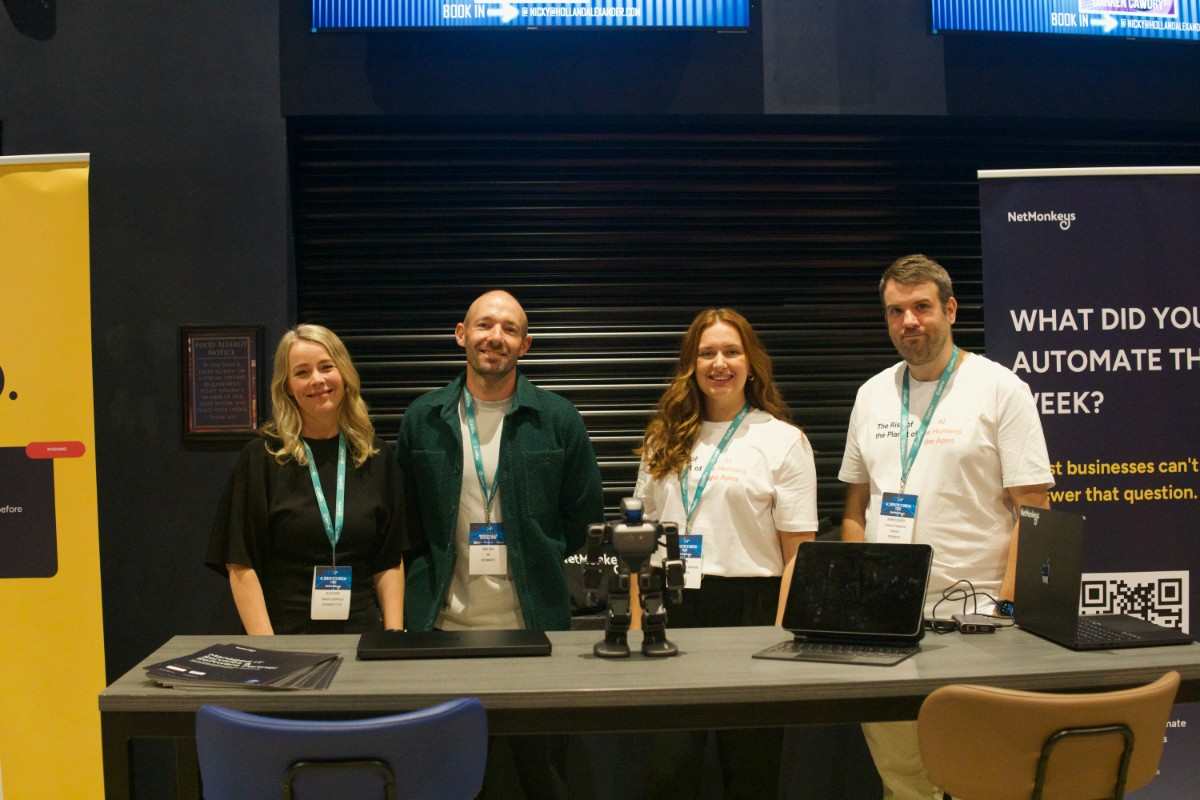
NetMonkeys team member
NetMonkeys team photography. Illustrates the people and activities behind our services.
Usability comes first

Make lesson transitions simple for the teacher

A teacher may move from a worksheet to a video, annotate a diagram and return to the original material. Describe those transitions in the brief. Check which device and software will be used, where sound comes from and how touch control behaves. The operating guide should follow the teaching sequence rather than list every technical feature.

Review your room requirements

For a more detailed room brief, explore AV Solutions for Education and Interactive AV Solutions. These pages help connect this project with the specific activity your users need to complete.

Evidence before sign-off

Test worksheets and diagrams from the back row

Place representative text and diagrams on the display and ask someone at the back to read them. Review mounting height, glare and any obstructions from furniture or the teaching position. Where pupils have specific access requirements, include the appropriate staff in the assessment. Record the room conditions under which the setup was checked.

Room priorities for Classroom AV Solutions
ActivityWhat the design should address
Teacher-led instructionReadable displays and convenient presentation controls.
Interactive lessonsTouch, annotation and a defined save-and-clear process.
Shared or specialist classroomsLayouts and connections matched to the teaching activity.
Hybrid participationCamera and audio requirements assessed where remote learning is needed.
A controlled delivery plan

Prepare a classroom installation with staff involved

Give teachers a chance to use the room before acceptance

Identify the teaching device, required software and person responsible for configuration. Coordinate installation with site access and classroom availability. During handover, let staff practise opening, sharing, annotating and clearing a session. Log remaining issues through the agreed route instead of leaving them as informal comments.

Compare the whole project

Compare the cost of a usable teaching setup

The budget may include mounting, connections, audio, software and staff guidance as well as the display. Compare retained and replacement equipment against the teaching task. Make responsibilities for device administration and future licences clear so the school understands the ongoing commitment.


Request a scoped proposal
Questions before you buy

Questions teachers and school IT teams ask

What is included in classroom AV solutions?

Classroom AV solutions include presentation displays, interactive screens, audio equipment and connections used during teaching. The specification should account for the back row, teaching position, room lighting, accessibility, device compatibility and the process for starting and clearing a lesson.

How should classroom AV support lesson transitions?

A teacher may move from a worksheet to a video, annotate a diagram and return to the original material. Describe those transitions in the brief. Check which device and software will be used, where sound comes from and how touch control behaves. The operating guide should follow the teaching sequence rather than list every technical feature.

How do we check whether pupils can read the display?

Place representative text and diagrams on the display and ask someone at the back to read them. Review mounting height, glare and any obstructions from furniture or the teaching position. Where pupils have specific access requirements, include the appropriate staff in the assessment. Record the room conditions under which the setup was checked.

What should teachers practise during handover?

Identify the teaching device, required software and person responsible for configuration. Coordinate installation with site access and classroom availability. During handover, let staff practise opening, sharing, annotating and clearing a session. Log remaining issues through the agreed route instead of leaving them as informal comments.

What costs sit alongside a classroom display?

The budget may include mounting, connections, audio, software and staff guidance as well as the display. Compare retained and replacement equipment against the teaching task. Make responsibilities for device administration and future licences clear so the school understands the ongoing commitment.
Business technology guides

Reading around classroom technology management

These existing NetMonkeys guides address the IT, budget and support decisions around room technology. The descriptions explain their relevance to this project; they are not dedicated AV product reviews.

Explore related AV services

Explore wider education and interactive AV

Use the pages below to explore the room, sector or location most relevant to your project. Each page links back to our installation service so the equipment and delivery discussion stays connected.

Locations

Rooms, sectors and specialist requirements

Speak to NetMonkeys

Show us how your classroom is used

Tell us which rooms or sites are involved, what users need to do and what is not working today. Bring any drawings, equipment lists and deadlines you already have. We will help identify the design, supply and installation work needed for a practical next step.

Updated 16 November 2026. Stock photography illustrates the relevant setting; it is not presented as a NetMonkeys installation or local client case study.