The 50-Seat Shift: Why IT Must Change After 50 Employees
IT infrastructure for 50 employees: when identity, permissions, networking, device management and backup need upgrading, with a 6-month roadmap.
The quick answer
Around 50 employees, informal IT stops being safe or efficient. A business typically needs centralised identity with enforced MFA and conditional access, group-based data permissions, a business-grade segmented network, managed devices, tested backups and written security policies. If budget is limited, start with MFA, administrator clean-up and verified backups.
Who this is for: Operations Managers, Managing Directors
Key takeaways
- The 50-user mark is an approximate tipping point where manual, trust-based IT starts to fail.
- Centralised identity, MFA and conditional access protect the most for the least cost.
- Use groups and least privilege for data access, with named owners and regular reviews.
- Business-grade networking and managed devices give you control, visibility and a base for assurance.
- Sequence the work over about six months: identity first, then devices, network, backup and policy.
What changes in IT when a business passes 50 employees?
Somewhere around 50 people, the IT arrangements that served a small business stop being adequate. The exact number varies. A 40-person firm handling regulated data may hit the wall sooner, and a 60-person firm with simple needs may stretch further. What matters is the pattern: more people, more devices, more data, more suppliers and more risk, all managed with tools designed for a much smaller team.
At 15 users, one capable person can set up accounts by hand, share passwords sensibly and remember who has access to what. At 50, that approach breaks. Leavers keep access. Files end up in the wrong hands. A single stolen password reaches too much. Customers and insurers begin to ask questions the business cannot answer with evidence.
This guide explains what typically needs to change when planning IT infrastructure for 50 employees: identity, access permissions, networking, device management, backup and security policy. It ends with a six-month roadmap and a view on what to do first if budget is tight. It is written for Operations Managers and Managing Directors, not for engineers.
If you are also comparing providers at this stage, our buyer's guide for businesses with 50 or more users covers the commercial side. This article covers the technical shape of what you are buying.
↑ Back to contentsWhy do entry-level and consumer-grade tools stop working?
Consumer-grade and entry-level tools are not bad. They are designed for individuals and very small teams, where trust is high and complexity is low. Their weakness is that they rely on people doing the right thing manually, and manual processes do not scale.
- Accounts are created one at a time. There is no single place to see who has access to what, so leavers are missed and permissions drift.
- Passwords are the only control. Without enforced multi-factor authentication or conditional rules, a phished password gives access to email and files.
- Home-grade networking. A single flat network with a consumer router or basic access points offers no separation between guests, staff, servers and devices that cannot be secured.
- Devices are personal in all but name. Laptops and phones are set up by their users, with no central control over encryption, updates or lost-device response.
- Backups are assumed. Many small businesses rely on sync tools or a single external drive, and find out only after an incident that sync is not backup.
- Policies live in people's heads. Nothing is written down, so new starters learn by imitation and auditors find nothing to review.
- One person knows everything. The informal IT lead becomes a bottleneck and a risk, a pattern covered in our guide on key-person risk.
None of these is a crisis alone. Together, at 50 users, they produce a business that is slower to onboard staff, harder to insure and easier to attack. Our overview of cyber security risks for small businesses shows how attackers exploit exactly these gaps.
↑ Back to contentsWhat does a before and after 50 seats comparison look like?
The table below shows how common IT arrangements typically change as a business grows. It is a general pattern, not a prescription. Your sector, data and customer commitments will adjust it.
| Area | Typical set-up below 50 users | What good looks like at 50 and beyond |
|---|---|---|
| Identity and sign-in | Individual accounts, passwords managed by users, MFA optional or partial | Central identity platform such as Microsoft Entra ID, single sign-on for business apps, MFA enforced, conditional access rules |
| Data access | Shared folders open to most staff, permissions set ad hoc | Role-based groups, least privilege, owner for each team site, regular access reviews |
| Networking | Single flat network, consumer or entry-level router, basic Wi-Fi | Business firewall, segmented networks, managed switching and Wi-Fi, guest separation, documented configuration |
| Devices | Mixed ownership, user-managed updates, no central control | Managed through Intune or equivalent, standard builds, enforced encryption and updates, remote wipe |
| Backup and recovery | Sync tools or a single drive, no testing | Independent backups of key systems and Microsoft 365 data, defined recovery targets, tested restores |
| Security policy | Informal expectations, no written policy | Written acceptable use, access, incident and joiner-mover-leaver policies, staff awareness training |
| Support and ownership | One informal contact, break-fix when something fails | Defined support model, monitored estate, named service owner, documented asset register |
The right-hand column is not a luxury. It is what customers, auditors and insurers increasingly expect from a business of this size. It is also what makes IT cheaper to run, because routine tasks become repeatable and incidents become rarer.
↑ Back to contentsWhy does centralised identity management matter at 50 users?
Identity is the front door to every system. When a business has 50 people, each using email, file storage, line-of-business software and perhaps a dozen cloud tools, the number of sign-in points becomes unmanageable without central control.
In a Microsoft environment, that central control is usually Microsoft Entra ID, which sits behind Microsoft 365. It holds user accounts, groups, device registrations and policies in one place. Single sign-on means staff use one set of credentials for many applications. When someone leaves, disabling one account cuts off access across the board.
Multi-factor authentication
MFA asks for a second proof of identity, such as an app prompt, alongside the password. It is the single most effective step against stolen credentials, and it should be enforced for every user, not offered as an option. Our guide on securing Microsoft 365 against phishing and account compromise explains why.
Conditional access
Conditional access sets rules about when and how people can sign in. For example, you might require MFA outside the office, block sign-in from countries where you have no staff, or demand a managed device before allowing access to sensitive files. Licensing for these features depends on the Microsoft plan, so check current requirements before you design policies. Our Microsoft 365 services page describes how this is typically set up.
What we would check first
Count the administrator accounts. A 50-person business rarely needs more than a handful, and each one should use MFA and a separate account from daily work. Then check whether leavers from the last year are still active. Both can be answered in an afternoon.
How should data access permissions be structured?
As headcount grows, the question changes from "can people get to their files?" to "can only the right people get to the right files?". Finance records, HR files and client contracts should not be open to everyone, and equally, teams should not be blocked from information they need.
The sound approach is least privilege: give people the access their role needs and nothing more, and manage that access through groups rather than individual grants.
- Define roles and teams. List the functions in the business and what each needs. Keep it practical, with perhaps ten to fifteen groups rather than fifty.
- Create security groups in the identity platform. Add people to groups instead of giving permissions to individuals. When someone moves team, you change group membership, not dozens of folder settings.
- Structure SharePoint and Teams deliberately. Use a small number of sites with clear owners. Avoid creating a new team for every project without a lifecycle.
- Limit external sharing. Decide who may share files outside the business and with what controls. Review guest accounts regularly.
- Name an owner for each area. Each site or group should have a business owner who approves access and reviews membership.
- Review access on a schedule. A quarterly or six-monthly check removes drift and catches leavers and role changes.
A typical problem we see described in growing firms is permission sprawl: years of folders shared with individuals, "everyone" groups left on sensitive areas, and no one certain who can see what. Cleaning this up takes time, so start with the most sensitive areas first, such as finance, HR and client data.
Common mistake
Giving broad access because it is quicker to set up and nobody has complained. The cost arrives later, when a leaver, a compromised account or an audit exposes data the person never needed. Build the group structure before the data volume makes it painful.
What does business-grade networking involve?
Network design matters more as the office fills up. More devices, more guests, more printers and sometimes more sites all add load and risk to infrastructure that was set up for a handful of users.
- A business firewall. It filters traffic, supports secure remote access and records what happens. Consumer routers lack the controls, logging and update discipline a business needs. Check that the firewall is supported and receives security updates.
- Segmentation. Separate networks for staff, guests, servers, voice and devices such as printers and cameras limit how far a problem can spread. A guest should never share a network with finance.
- Managed switching. Managed switches allow you to create those separate networks, monitor ports and identify faults without guesswork.
- Managed Wi-Fi. Enterprise-style access points provide consistent coverage, roaming between rooms and central control of settings. Plan coverage by survey, not by guesswork.
- Resilient connectivity. Consider whether one internet line is an acceptable risk. Some businesses add a secondary connection or a mobile failover.
- Documentation. A simple diagram of the network, with addressing and equipment locations, saves hours when something breaks.
Our IT infrastructure service covers design, supply and support of this layer. For businesses that plan to relocate or expand into a new floor, building the network design into the fit-out plan avoids expensive rework.
When the budget is limited, the order matters. A supported firewall and sensible segmentation come before premium Wi-Fi hardware, and both come before a second internet line.
↑ Back to contentsHow do you manage devices once there are 50 or more?
Device management is how a business keeps control of laptops, desktops and phones without touching each one by hand. In a Microsoft environment, Intune is the usual tool, though other platforms exist. The principle is the same: devices are enrolled, configured to a standard, and checked against policy.
Managed devices let you enforce disk encryption, require current updates, push applications, apply security settings and wipe a lost laptop. They also give conditional access something to check: you can allow sign-in only from devices that meet your standard.
Decide your approach to personal devices early. A "bring your own device" arrangement can work if you apply app-level protection to company data without taking over the whole phone. Whichever model you choose, write it down so staff know what is expected.
Before you start, build a basic asset list of what exists, who has it and how old it is. Our guide on cyber security asset management explains why inventory is the foundation for everything that follows. Standardising on a small number of laptop models and a consistent build also reduces support time and makes replacement cycles predictable.
↑ Back to contentsWhy do backup, recovery and security policy need formalising?
Backup and recovery
Many businesses assume Microsoft 365 or their file-sync tool backs everything up. Those services provide availability and some retention, but they are not a substitute for an independent backup. Accidental deletion, malicious deletion, ransomware and account compromise can all damage cloud data. Check the retention terms of each service and decide whether independent backup is needed.
Good practice is to back up key systems and data to a separate location, keep at least one copy that cannot be altered by an attacker who has taken over your accounts, and test restores on a schedule. Agree recovery targets with the business: how long can finance be offline, and how much work can you afford to redo? Our business continuity service helps businesses put those targets into practice.
Formal security policies
Policies are not paperwork for its own sake. They tell staff what is expected, give managers something to enforce and give customers and insurers evidence. At this size, a short set covers most needs: acceptable use, access control, joiners-movers-leavers, incident reporting, remote working and supplier security.
Our cyber security services can help turn them into working controls. Keep them brief and readable. A two-page policy that people follow is more useful than a thirty-page document nobody opens. Our guides on cyber security best practices and incident response planning provide a starting point you can adapt, and Cyber Essentials without an internal IT department shows how a business of this size can reach a recognised baseline.
↑ Back to contentsWhat is an infrastructure readiness checklist for 50 users?
Use this checklist to test how ready your business is. Tick each item you can evidence, not just each item you believe is true. Any item you cannot evidence is a gap to schedule.
| Area | Check | Evidence you can show |
|---|---|---|
| Identity | MFA enforced for all users and administrators | Policy report or sign-in settings |
| Identity | Leavers disabled on their last day | Last three leaver records and timings |
| Access | Sensitive data held in groups with named owners | Group list and owner names |
| Access | External sharing and guest accounts reviewed | Review date and outcome |
| Network | Supported business firewall with logging | Model, support status, config backup |
| Network | Guest Wi-Fi separate from staff network | Network diagram |
| Devices | All laptops encrypted and enrolled in management | Device compliance report |
| Devices | Asset register covering hardware and software | Register with owners and ages |
| Backup | Independent backups of key systems and Microsoft 365 data | Backup report and last restore test |
| Policy | Written security and acceptable use policies | Signed or acknowledged by staff |
| Support | Defined escalation route and named service owner | Contract or internal procedure |
| Recovery | Incident response plan agreed and rehearsed | Plan document and exercise notes |
If you can tick fewer than half of these, treat the next six months as a structured programme, not a series of ad hoc fixes. The roadmap below shows one way to sequence it.
↑ Back to contentsWhat does a six-month IT upgrade roadmap look like?
This roadmap is illustrative. It assumes a business of around 50 people, a Microsoft 365 environment and limited in-house IT. Adjust the order if you have a specific risk, such as an unsupported server, a looming insurance renewal or a customer audit.
| Month | Focus | Main outputs |
|---|---|---|
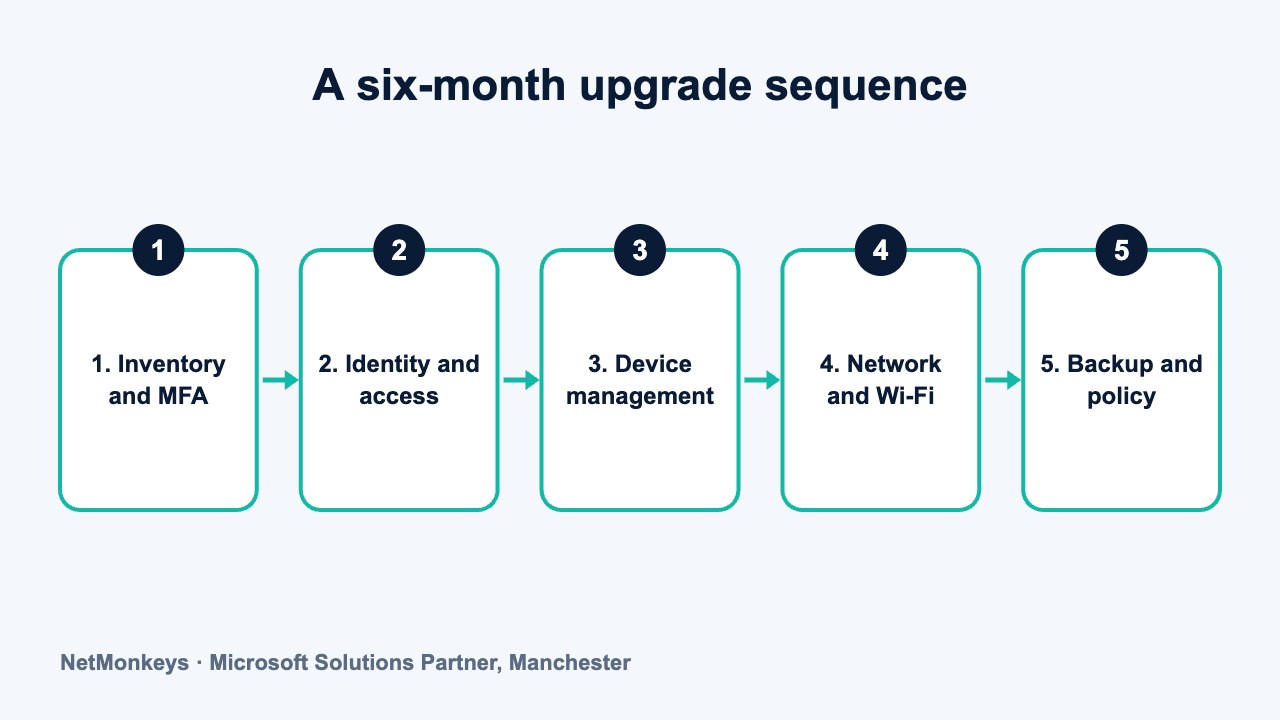
| Month 1 | Discovery and quick wins. Inventory devices, accounts, licences and suppliers. Enforce MFA. Remove dormant accounts and reduce administrators. | Asset and account inventory. MFA enforced. Priority risk list. Agreed budget and owner. |
| Month 2 | Identity and access design. Define roles and groups. Plan conditional access. Review external sharing. | Group structure. Conditional access design. Access owners named. |
| Month 3 | Device management. Enrol devices into management. Apply encryption, update and security baselines. Retire unsupported systems where possible. | Managed device estate. Baseline policy. Replacement plan for old hardware. |
| Month 4 | Network upgrade. Replace or reconfigure firewall, segment networks, improve Wi-Fi coverage and document the design. | Supported firewall. Segmented network. Network diagram. |
| Month 5 | Backup and recovery. Implement independent backups, set recovery targets and run a restore test. | Backup solution. Recovery targets. First tested restore. |
| Month 6 | Policy and assurance. Publish core policies, run staff awareness training and review progress. Decide on Cyber Essentials or other assessment. | Policy set. Training record. Review report and next-phase plan. |
Some steps can run in parallel if you have support. The order shown puts identity first because it protects the most and costs the least. Network work comes after devices because you will know what must connect and how.
If you do not have the capacity to run this internally, a virtual CIO or a managed IT support partner can own the plan and report progress to the leadership team.
↑ Back to contentsWhat are the common growth mistakes, and what should you do first?
Common mistakes
- Waiting for an incident. Businesses often upgrade after a breach, a failed audit or a lost client. The same work costs less and causes less disruption when planned.
- Buying tools before design. New software without a clear identity and access structure adds complexity. Design first, then buy.
- Treating the informal IT person as the strategy. The long-serving colleague who "looks after IT" is valuable but should not be the only safeguard. See our guide on when a local IT contact is no longer enough.
- Skipping documentation. Undocumented systems depend on memory. When the person leaves, so does the knowledge.
- Ignoring leavers and role changes. Access accumulates. Without a leaver process, former staff and contractors keep access for months.
- Over-buying. Not every business needs every feature. Choose controls that match your data, customers and risk.
Cost-sensible prioritisation
Money is finite, and the order of work matters more than the total. A practical sequence is:
- Enforce MFA and remove excess admin rights. This is low cost and addresses the most common route into a business.
- Verify backups. Confirm that a separate, tested backup exists before anything else breaks.
- Get device control and encryption in place. Lost laptops and unpatched machines are everyday risks.
- Fix permissions on sensitive data. Start with finance, HR and client records.
- Replace unsupported or consumer-grade network equipment. Do this at a natural refresh point where you can.
- Write the policies. Short, clear and acknowledged by staff.
- Seek an assurance mark if customers or insurers expect it. The effort of the earlier steps is directly reusable.
Practical tip
Ask each proposed project two questions: what risk does it remove, and what would it cost us if we did nothing for another year? Projects with clear answers to both go first. For help judging providers and proposals, see how to choose an IT support company.
If you want an independent view of where your business stands against the checklist above, talk to our team and ask for a readiness review. We will tell you what matters now and what can wait.
↑ Back to contentsFrequently asked questions
Why is 50 employees the point where IT needs to change?
It is an approximate threshold, not a rule. By around 50 users, manual account management, shared passwords and flat networks start to fail, and customers and insurers expect evidence of control. The right trigger depends on your data, sector and growth rate, so assess your risk rather than relying on the number alone.
Do we need Microsoft Entra ID at 50 users?
If you use Microsoft 365, you already have a version of Entra ID behind it. The question is whether you configure it properly, with enforced MFA, groups, conditional access and device registration. Check current Microsoft plans and licensing to see which features you can use.
What is the first thing to fix if budget is limited?
Enforce multi-factor authentication for every user, reduce administrator accounts and confirm that a separate backup exists and has been tested. These steps are comparatively low cost and address the most common causes of serious incidents.
Is Intune necessary for a 50-person company?
Not always, but some form of central device management is advisable at this size. Without it you cannot reliably enforce encryption, updates or lost-device wipe. Intune is a common choice in Microsoft environments, and other tools exist. Choose based on your platform mix and support capacity.
Can we manage this with one internal IT person?
Sometimes. One capable person can run a well-designed environment, but a single individual is also a continuity risk, and 50 users generate steady support demand. Many businesses add an external partner for cover, projects and specialist skills, which is the model described in our guidance on co-managed IT.
How much does upgrading IT infrastructure for 50 employees cost?
It depends on what you already have, so we avoid giving a figure here. Costs are driven by licences, network equipment, device refresh and professional time. Ask for a phased quote linked to the roadmap, so you can see which items reduce the most risk for the least spend.
How do we know our network is not fit for 50 users?
Warning signs include frequent Wi-Fi complaints, guests on the staff network, an unsupported or consumer-grade router, no network diagram and nobody able to say what is connected. A short survey and review can confirm the position and produce a prioritised plan.
About this guide and NetMonkeys
Written by Caleb Adoh, Growth Marketing Manager at NetMonkeys. NetMonkeys is a Manchester-based Microsoft Solutions Partner with offices in Manchester, Nottingham and London and field engineers across around 12 UK cities, providing managed IT support, cyber security and virtual CIO services. This guide gives general information for UK businesses. Contracts, insurance policies and certification schemes differ, so check your own documents and current requirements, and take legal, insurance or financial advice where it matters.
Want a second opinion on your IT?
Talk to NetMonkeys about your current set-up, your contract and what a sensible next step looks like for your business.
Explore managed IT support Contact the team