Introduction: Why Use SharePoint as an Intranet?
If you’re searching for the best way to use SharePoint as an intranet, you’re in the right place. Microsoft SharePoint is one of the most powerful and widely adopted intranet platforms available today, used by over 200,000 organisations worldwide, including many FTSE 100 and Fortune 500 companies.
But raw SharePoint out of the box is not an intranet. It’s a platform. The difference is significant. Many businesses launch a SharePoint intranet only to watch it go unused because they didn’t take the time to configure, structure, and govern it properly.
At NetMonkeys, we’ve helped organisations across the UK design and deploy SharePoint intranets that people actually use, platforms that drive productivity, improve internal communications, and serve as a genuine digital workplace hub.
This guide shares 10 hard-won tips to help you do exactly that.
Who This Guide Is For
This article is aimed at:
- IT managers and Microsoft 365 administrators setting up SharePoint for the first time
- Internal communications teams wanting to improve employee engagement
- HR departments looking to centralise policies, handbooks, and onboarding resources
- Business owners and operations leads wanting a single source of truth for their teams
Whether you’re starting from scratch or trying to improve an underperforming SharePoint environment, these tips will give you a clear, practical roadmap.
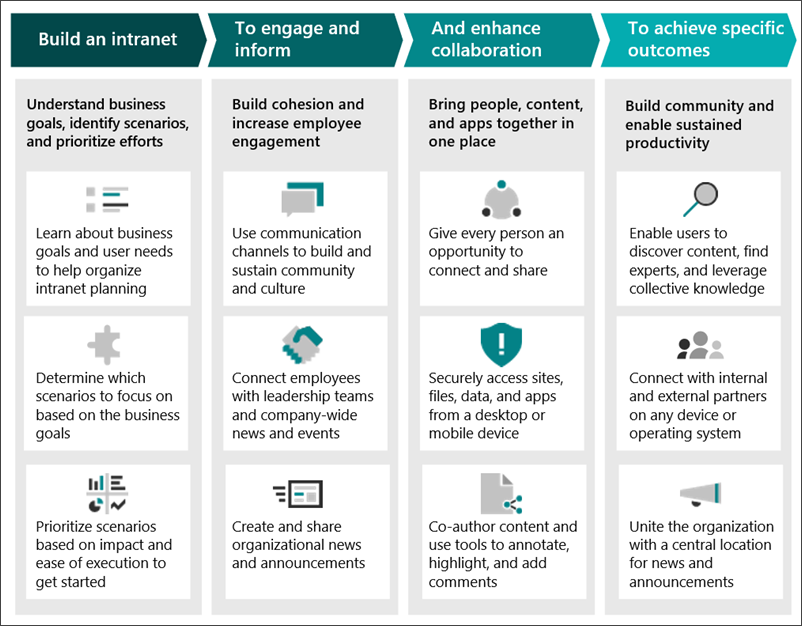
Tip 1: Start With an Information Architecture Plan — Not SharePoint
The most common mistake organisations make when setting up SharePoint as an intranet is opening SharePoint first and planning second.
Before you touch a single site collection, ask these foundational questions:
- What are the primary use cases? (News, policy storage, project collaboration, HR, IT helpdesk?)
- How is your organisation structured? (Departments, geographies, teams?)
- Who are your key audiences and what do they need to find quickly?
- What content already exists, and how much of it is still relevant?
A well-designed SharePoint intranet follows a clear hub-and-spoke model: a central intranet home (the hub) connected to departmental or functional sub-sites (the spokes). For example:
- Hub Site: Company Intranet Home
- HR Policies & Benefits
- IT Support & Resources
- Finance Team Site
- Marketing Hub
- Projects & Collaboration Spaces
Map this out on a whiteboard or in a tool like Miro before you create a single SharePoint site. Your future users will thank you.
SEO-equivalent for intranets: Think of your information architecture like a website’s navigation clear, logical, and findable within three clicks.
Tip 2: Use SharePoint Hub Sites to Connect Your Intranet
SharePoint Hub Sites are one of the most underutilised features in Microsoft 365, and they are absolutely central to building a coherent intranet experience.
A Hub Site lets you:
- Aggregate news from multiple associated sites into a single news feed on your intranet home page
- Apply consistent navigation across all associated sites, so employees always feel “in the intranet”
- Roll up search results so users searching from the hub find content from all associated sub-sites
- Apply consistent branding (logos, headers, theme colours) without managing each site individually
How to set up a Hub Site:
- Go to the SharePoint Admin Centre
- Select the site you want to designate as your hub
- Click Hub → Register as Hub Site
- Give it a name and, optionally, define who can associate sites to it
Once your hub is registered, go to each departmental site and associate it: Settings → Hub Site Information → Select your hub.
Netmonkeys Pro Tip: Use a separate Communication Site as your intranet home, not a Team Site. Communication Sites are designed for broadcasting to a wide audience and have cleaner, more polished layouts.
Tip 3: Customise Your SharePoint Home Page for Maximum Engagement
Your intranet home page is the front door of your digital workplace. If it looks generic or is hard to navigate, employees will stop visiting within weeks.
SharePoint’s modern page editor makes it straightforward to build a professional, branded home page using web parts. Here are the key web parts every intranet home page should include:
| Web Part | Purpose |
|---|---|
| Hero | Feature important announcements, initiatives, or campaigns with full-width imagery |
| News | Aggregate and display company and departmental news in a scrollable feed |
| Quick Links | Surface the 6–10 most-used tools and resources (e.g., expense forms, IT support, HR policies) |
| Events | Automatically pull in upcoming events from SharePoint or Outlook calendars |
| Yammer / Viva Engage | Embed a live social feed to drive community and conversation |
| People | Highlight key contacts, leadership team, or “Who’s Who” sections |
| Stream | Embed video updates, CEO messages, or training content |
Best practice: Conduct a quick employee survey or hold a focus group before finalising your home page layout. Ask: “What are the five things you need to find most often at work?” Build your Quick Links around those answers.
Tip 4: Establish a Consistent Governance Model
This is the tip most organisations skip — and the reason most SharePoint intranets descend into chaos within 12 months.
Without governance, you end up with:
- Duplicate sites and content that contradicts itself
- Outdated policies and documents sitting alongside current ones
- Dozens of site owners who’ve left the business
- No one knowing who’s responsible for what
A SharePoint intranet governance model should cover:
Content ownership: Every section of your intranet should have a named owner responsible for keeping it up to date. This is typically a senior person in each department (e.g., the HR Manager owns the HR site).
Content review cycles: Set a regular schedule — quarterly or bi-annually — for content owners to review their pages and confirm content is still accurate.
Site creation policy: Define who can request a new SharePoint site and how. Without this, you’ll end up with hundreds of orphaned sites.
Naming conventions: Agree on a consistent naming structure for sites, libraries, folders, and files.
Permissions model: Define who gets owner, member, and visitor access across your intranet. Be conservative — not everyone needs to edit everything.
Create a simple one-page governance document and share it with all site owners. Review it annually.
Tip 5: Make Content Findable With Managed Metadata and Search
Your SharePoint intranet could contain the most useful content in the world, but if employees can’t find it, it might as well not exist.
Microsoft Search, integrated across SharePoint, is genuinely powerful when configured correctly. Here’s how to make it work for you:
Use Managed Metadata (Term Store): Define a consistent set of tags for your content — by department, content type, location, or topic. When documents are tagged consistently, search filters and refiners become far more effective.
Configure search verticals: In the Microsoft 365 Admin Centre, you can create custom search verticals — for example, a “Policies” vertical that only surfaces HR and compliance documents, or a “People” search that helps employees find colleagues with specific skills.
Promote key results: Use Search Answer features to pin specific pages or documents to the top of results for common search terms. For example, the search query “annual leave” could always return your holiday policy as the first result.
Audit your search regularly: Use the SharePoint Search Usage Reports to understand what people are searching for but not finding. These gaps are your content roadmap.
Tip 6: Integrate Microsoft 365 Tools to Create a True Digital Workplace
One of SharePoint’s greatest strengths as an intranet platform is its deep integration with the rest of the Microsoft 365 ecosystem. A well-connected SharePoint intranet becomes a genuine digital workplace hub, not just a document repository.
Key integrations to configure:
Microsoft Teams: Pin your SharePoint intranet pages as tabs within Teams channels, so employees can access intranet content without leaving their primary collaboration tool. You can also embed Teams channels directly into SharePoint pages.
Power Automate: Automate repetitive intranet processes — for example, sending a notification to the relevant site owner when a document hasn’t been reviewed for 90 days, or triggering an approval workflow when a new policy is uploaded.
Power BI: Embed live dashboards and reports directly into SharePoint pages so teams can see key metrics in context — without switching applications.
Viva Connections: If your organisation uses Microsoft Teams as its primary interface, Viva Connections turns your SharePoint intranet into the homepage experience inside Teams, including a mobile-friendly dashboard for frontline workers.
Outlook Events Calendar: Sync company-wide events from Exchange/Outlook directly into your SharePoint intranet Events web part for a single, always-current calendar.

Tip 7: Prioritise the Mobile Experience
A significant and growing proportion of employees — particularly frontline workers, field staff, and executives — access company resources on mobile devices. If your SharePoint intranet isn’t optimised for mobile, you’re excluding a substantial portion of your workforce.
The good news: modern SharePoint pages are responsive by design. But responsive doesn’t always mean good.
What to check:
- Test every home page and sub-site on an actual mobile device (iOS and Android), not just a browser’s developer tools
- Avoid web parts that don’t render well on mobile — complex multi-column sections or embedded iframes often cause issues
- Keep navigation menus shallow and link labels short — mobile navigation menus truncate long labels
- Use the SharePoint mobile app and test the full user experience end-to-end; it renders slightly differently from the mobile browser
Viva Connections for mobile: If mobile access is a priority for your organisation — especially for frontline workers who may not have desktop access — Microsoft Viva Connections is worth implementing. It provides a dedicated, app-like mobile experience for your SharePoint intranet content within Microsoft Teams.
Tip 8: Use SharePoint News to Drive Internal Communications
Internal communications is one of the most valuable use cases for SharePoint as an intranet — and the News feature is built precisely for this purpose.
SharePoint News allows you to:
- Publish targeted news posts to specific sites (departmental news stays relevant to that team)
- Roll up news from all associated sites to your intranet home page
- Feature stories prominently using the Hero web part
- Send news digest emails automatically to employees who haven’t visited the intranet recently
- Track engagement with each news post through the Page Analytics feature
Tips for effective intranet news:
- Publish consistently. Even if it’s just one post per week, a regular publishing cadence trains employees to check the intranet. Irregular posting kills the habit.
- Use images. SharePoint News posts with compelling featured images consistently outperform text-only posts. Microsoft provides a stock photo library for this purpose.
- Write for skimmers. Use short paragraphs, subheadings, and bold text. Most employees spend less than 60 seconds on an intranet article.
- Assign news authors. Every department should have a designated person responsible for publishing news to their site. Don’t let all content flow through a single bottleneck.
- Measure and iterate. Use SharePoint page analytics (the bar chart icon at the bottom of any page in edit mode) to track unique views, average time on page, and traffic sources.
Tip 9: Set Up a Clear Permissions and Access Model
Getting SharePoint permissions wrong is one of the fastest ways to undermine trust in your intranet — either because users can access content they shouldn’t, or because they can’t access content they need.
SharePoint permissions basics:
SharePoint has three default permission levels you’ll use most often:
- Site Owner – Full control, including managing permissions and site settings. Assign sparingly.
- Site Member – Can add, edit, and delete content. Typically for content contributors in each department.
- Site Visitor – Read-only access. Appropriate for most intranet users.
Best practice: Use Microsoft 365 Groups and Entra ID (Azure AD) security groups to manage access, rather than adding individual users directly to sites. This makes it far easier to manage permissions at scale — when someone joins or leaves a team, updating their group membership automatically updates all their SharePoint access.
Sensitive content: For HR, Finance, or Legal content that should be restricted, use separate SharePoint sites with limited access rather than trying to lock down individual libraries or folders within a broader site. Folder-level permissions in SharePoint cause permission inheritance breaks that quickly become unmanageable.
External sharing: Clearly define your external sharing policy before you launch. SharePoint can share content externally, which is powerful for collaboration — but needs to be explicitly governed if your intranet contains confidential information.
Tip 10: Measure Adoption, Gather Feedback, and Iterate
Launching your SharePoint intranet is not the finish line, it’s the starting gun. The most successful intranet projects are those that treat the platform as a living product, continuously improved based on real data and real feedback.
Measuring adoption:
Microsoft 365 provides several built-in tools for measuring intranet adoption:
- SharePoint Site Analytics – Track page views, unique viewers, and popular content at the site level
- Microsoft 365 Usage Reports (in the Admin Centre) – Broader adoption data across the M365 suite
- Viva Insights – Richer engagement data if your organisation has the appropriate Microsoft 365 licensing
Set up a simple monthly adoption dashboard covering: unique monthly visitors, most-visited pages, top search queries, and pages with zero views (candidates for archiving or improving).
Gathering feedback:
- Embed a Microsoft Forms survey on your intranet home page, asking a simple monthly question (e.g., “Did you find what you were looking for today?”)
- Run an annual intranet satisfaction survey with questions covering findability, relevance, and overall satisfaction
- Create a dedicated “Intranet Feedback” channel in Microsoft Teams where employees can report issues or suggest improvements
- Hold quarterly reviews with your site owners to surface content problems and improvement ideas
Iterating:
Use the data and feedback to drive a quarterly improvement cycle. Each quarter, identify the top three problems to fix and the top one improvement to make. Small, consistent improvements compound into a dramatically better intranet over 12–18 months.
Summary: Your SharePoint Intranet Checklist
Here’s a quick-reference checklist covering the key actions from this guide:
- Document your information architecture before building anything
- Create a Communication Site as your intranet hub
- Register your hub site and associate all departmental sites
- Design a compelling, useful home page with key web parts
- Write and distribute a governance document with named content owners
- Configure managed metadata and promote key search results
- Integrate Teams, Power Automate, and Power BI where relevant
- Test and optimise the mobile experience
- Establish a consistent internal communications publishing schedule
- Set up permissions using M365 Groups, not individual user assignments
- Measure adoption monthly and run a quarterly improvement cycle
About NetMonkeys
Netmonkeys is a UK-based Microsoft 365 partner specialising in SharePoint intranet design, deployment, and adoption. Our team has delivered intranet projects for organisations ranging from 50 to 10,000+ employees across manufacturing, professional services, healthcare, retail, and the public sector.
If you’d like help designing or improving your SharePoint intranet, get in touch with our team — we offer free initial consultations and intranet health checks.