
If you’re looking to build a modern intranet in 2026, you don’t have to start from scratch. Microsoft provides a rich library of ready-made SharePoint intranet examples — real, deployable templates and guided designs, through the SharePoint Look Book and the PnP (Patterns & Practices) provisioning engine. Every example below comes directly from Microsoft and can be provisioned into your Microsoft 365 tenant or recreated using official guided walkthroughs.
We’ve rounded up the 12 best SharePoint intranet examples from Microsoft that deserve your attention this year. Whether you’re launching a brand-new intranet or modernizing an existing one, these examples cover everything from corporate landing pages to department hubs, onboarding portals, and crisis communications.
Need help building your SharePoint intranet? NetMonkeys specialises in SharePoint and Microsoft 365 solutions.
1. The Landing — Corporate Home Site
Type: Communication Site | Category: Organisation
The Landing is Microsoft’s flagship example of a corporate intranet home page. It’s designed to serve as the single entry point for your entire organisation — a place where employees begin their workday and discover news, events, resources, and personalised content.
The Landing uses a bold Hero web part at the top of the page to surface priority content, followed by curated News, Events, and Quick Links sections. It’s built to work seamlessly as a SharePoint home site, which means it can integrate directly with Microsoft Viva Connections and serve as the foundation for the employee experience across Teams, web, and mobile.

Microsoft’s recommended SharePoint home site layout — combining Hero, Dashboard, Weather, News, Events, and Quick Links web parts into a unified landing experience. Source: Microsoft Learn
Why it stands out: The Landing demonstrates how to combine visual impact with information density. It’s the template to study if you want a polished, all-in-one intranet landing page that connects to the broader Microsoft 365 ecosystem.
Get it: Available as a PnP provisioning template — deploy it directly into your tenant with a few clicks.
2. Leadership Connection
Type: Communication Site | Category: Organisation
One of the most common gaps in corporate intranets is the distance between leadership teams and individual contributors. Microsoft’s Leadership Connection template tackles this head-on by providing a dedicated site where executives can share news, post updates, and host conversations with the wider organisation.
The template comes pre-configured with sections for leadership profiles, organisational news, upcoming leadership events (using the Events web part with audience targeting), and a Viva Engage integration that encourages two-way dialogue between leaders and employees. Microsoft also provides a step-by-step guided walkthrough if you prefer to build it from scratch.

The Leadership Connection template features company branding, a Hero web part with curated priorities, and customisable navigation. Source: Microsoft Learn

The News web part surfaces timely leadership updates, vision statements, and blog posts. Source: Microsoft Learn

Stream video integration and Quick Links provide employees with direct access to leadership talks and key resources. Source: Microsoft Learn

Viva Engage integration turns the leadership site into a two-way conversation space, not just a broadcast channel. Source: Microsoft Learn
Why it stands out: It bridges the communication gap between leadership and the workforce. The built-in Viva Engage web part transforms it from a static announcement board into an interactive conversation space.
Get it: Available as a PnP template or through the guided walkthrough on Microsoft Learn.
3. The Perspective — News & Editorial Portal
Type: Communication Site | Category: Organisation
The Perspective is Microsoft’s example of an editorial-style intranet news site. Think of it as your organisation’s internal magazine or newsletter hub — a place where corporate communications teams can publish long-form stories, feature articles, and thought leadership pieces in a visually rich format.
The design leans heavily on the News web part’s “Top story” layout, large hero images, and clean typography to create a reading experience that feels more like a digital publication than a traditional intranet page. It’s ideal for organisations that invest in internal storytelling and employer branding.
Why it stands out: Where most intranet news sections feel like bulletin boards, The Perspective shows how to create an engaging, magazine-quality editorial experience entirely within SharePoint.
Get it: Available as a PnP provisioning template through the SharePoint Look Book.
4. Contoso News Site
Type: Communication Site | Category: Organisation
The Contoso News Site is Microsoft’s dedicated example for an organisation-wide news hub. While The Perspective takes an editorial approach, the News Site focuses on being a practical, high-volume news distribution centre — designed for organisations that publish frequently and need content to reach employees quickly.
It demonstrates how to use the News web part in multiple layouts (Top story, Hub news, Carousel), combine it with audience targeting so different departments see relevant stories, and integrate with hub sites so news rolls up from across the organisation. It’s a masterclass in SharePoint’s news architecture.
Why it stands out: If your organisation struggles with news discoverability or information overload, this template shows exactly how to structure a news site that scales.
Get it: Available as a PnP provisioning template.
5. Crisis Communications Site
Type: Communication Site | Category: Organisation
Originally developed during the COVID-19 pandemic, the Crisis Communications template has become a permanent fixture in Microsoft’s intranet toolkit. It provides a pre-built site for sharing urgent organisational updates, safety protocols, FAQs, and essential resources during any crisis, whether it’s a health emergency, natural disaster, cybersecurity incident, or business disruption.
The layout prioritises clarity and speed: a prominent Hero section for the most critical update, followed by FAQ accordions, resource links, and news feeds. It’s designed to be deployed quickly (provisioning takes about 20 minutes) so organisations can respond to emerging situations without waiting for a design cycle.
Why it stands out: Every organisation needs a crisis communications plan, and this template removes the barrier to having a professional, accessible crisis site ready to go. It’s one of the most immediately practical templates Microsoft offers.
Get it: Available as a PnP provisioning template. Deploy it proactively so it’s ready when you need it.
6. Human Resources Hub
Type: Communication Site (Hub) | Category: Organisation
The Human Resources Hub is one of Microsoft’s most comprehensive intranet examples. It’s not a single site — it’s a hub site that connects multiple HR-related sites (like a Benefits sub-site) into one cohesive experience. This mirrors how HR departments actually work: benefits, payroll, policies, recruiting, and employee wellness are all distinct areas that need to feel unified.
The hub demonstrates SharePoint’s hub site architecture at its best, showing how to use shared navigation, rolled-up news, and consistent branding across a family of related sites. The main landing page surfaces key HR tasks, links to policies and benefits information, and highlights HR news from across the connected sites.
Why it stands out: It’s the best Microsoft example of a department-level hub site. If you’re building an HR portal — or any departmental hub — this is the architecture to follow. It also provisions with a connected Benefits sub-site, so you can see the hub relationship in action immediately.
Get it: Available as a PnP provisioning template. Requires SharePoint Online Admin permissions.
7. Global Sales Hub
Type: Communication Site (Hub) | Category: Organisation
The Global Sales Hub is Microsoft’s example of a multi-site hub designed for sales-driven organisations. It provisions with two connected sub-sites — a Retail Operations site and a Consumer Retail site — demonstrating how geographically distributed or functionally divided sales teams can share a unified intranet presence.
The hub landing page features sales news, performance highlights, event calendars, and quick links to key tools and resources. The connected sub-sites show how individual teams can maintain their own content while inheriting the hub’s navigation, branding, and news aggregation.
Why it stands out: It’s the go-to example for any organisation that needs a hub serving multiple sub-teams or regions. The multi-site provisioning (three sites deployed together) makes it especially useful for understanding how SharePoint hub architecture works at scale.
8. Global Marketing Hub
Type: Communication Site (Hub) | Category: Organisation
Similar in structure to the Global Sales Hub, the Global Marketing Hub is tailored for marketing departments. It provisions with a connected Communication Site, creating a two-site hub that demonstrates how marketing teams can centralise brand assets, campaign updates, and creative resources while maintaining a visually striking intranet presence.
Marketing intranets tend to demand higher design standards than most departments, and this template delivers — with strong use of hero imagery, brand-aligned colour schemes, and prominent visual storytelling through the Hero and Image Gallery web parts.
Why it stands out: It’s the most design-forward hub template Microsoft offers, making it ideal for teams that care deeply about visual presentation. It also serves as a practical example of how to structure a brand and creative resource centre.
Get it: Available as a PnP provisioning template through the SharePoint Look Book.
9. New Employee Onboarding Hub (Three-Site Suite)
Type: Communication Sites | Category: Solutions
Microsoft’s New Employee Onboarding (NEO) sites are arguably the most thoughtfully designed template suite in the entire Look Book. The suite consists of three separate but interconnected sites that together cover the full onboarding journey:
Pre-Onboarding Site — Shared with new hires after they sign their offer letter but before their first day. It introduces the company culture, sets expectations, and helps new employees feel welcome before they even walk through the door. This site can be shared with external guests who don’t yet have corporate credentials.
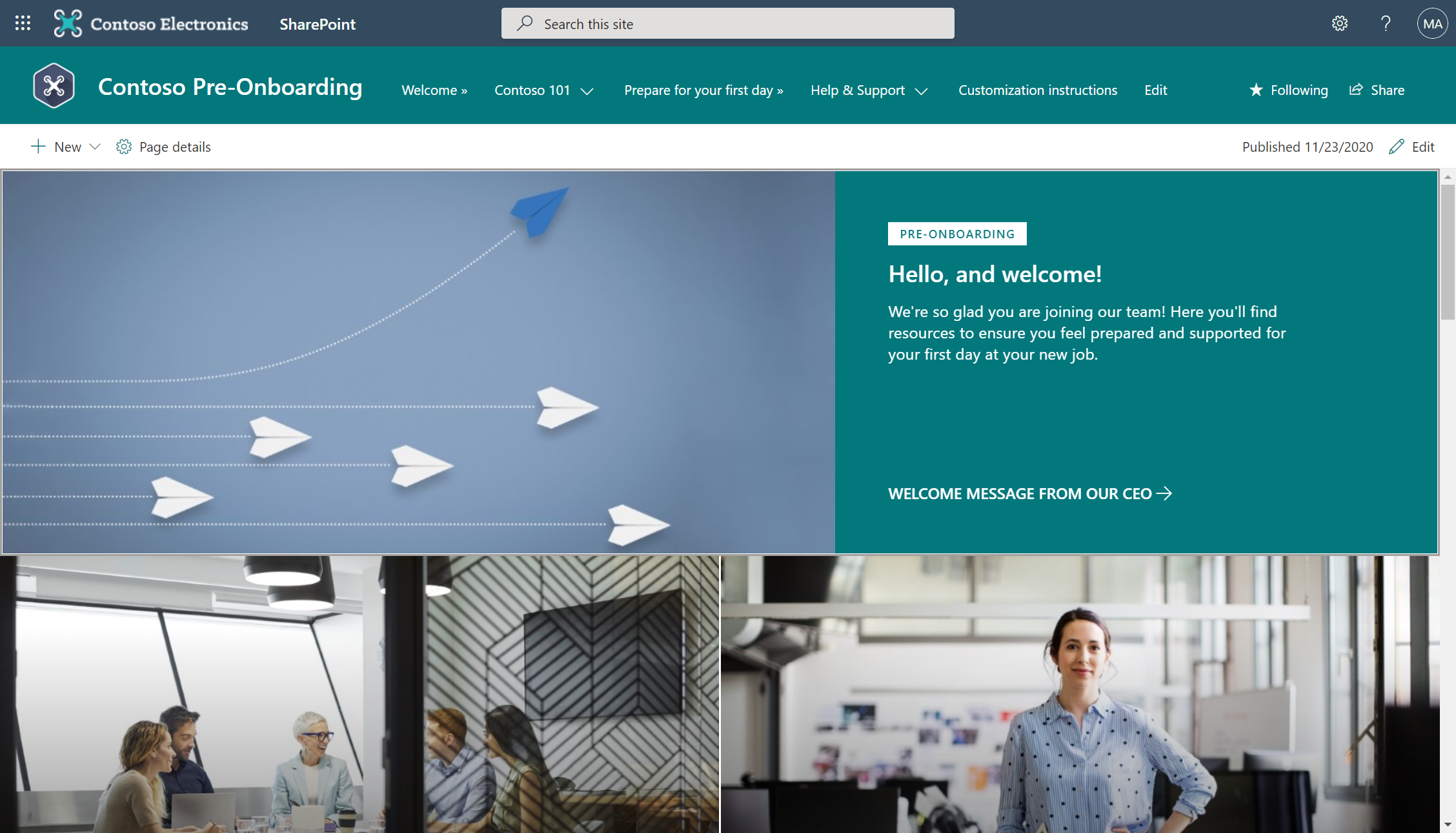 The Pre-Onboarding site welcomes new hires before their first day with company culture highlights, a getting-started guide, and FAQ resources. Source: Microsoft Learn
Corporate Onboarding Site — The main onboarding hub shared on day one. It provides everything a new hire needs: an onboarding activity checklist (a configurable task list that paces new employees through administrative, technology, culture, and training tasks), key contacts, company policies, and links to essential tools.
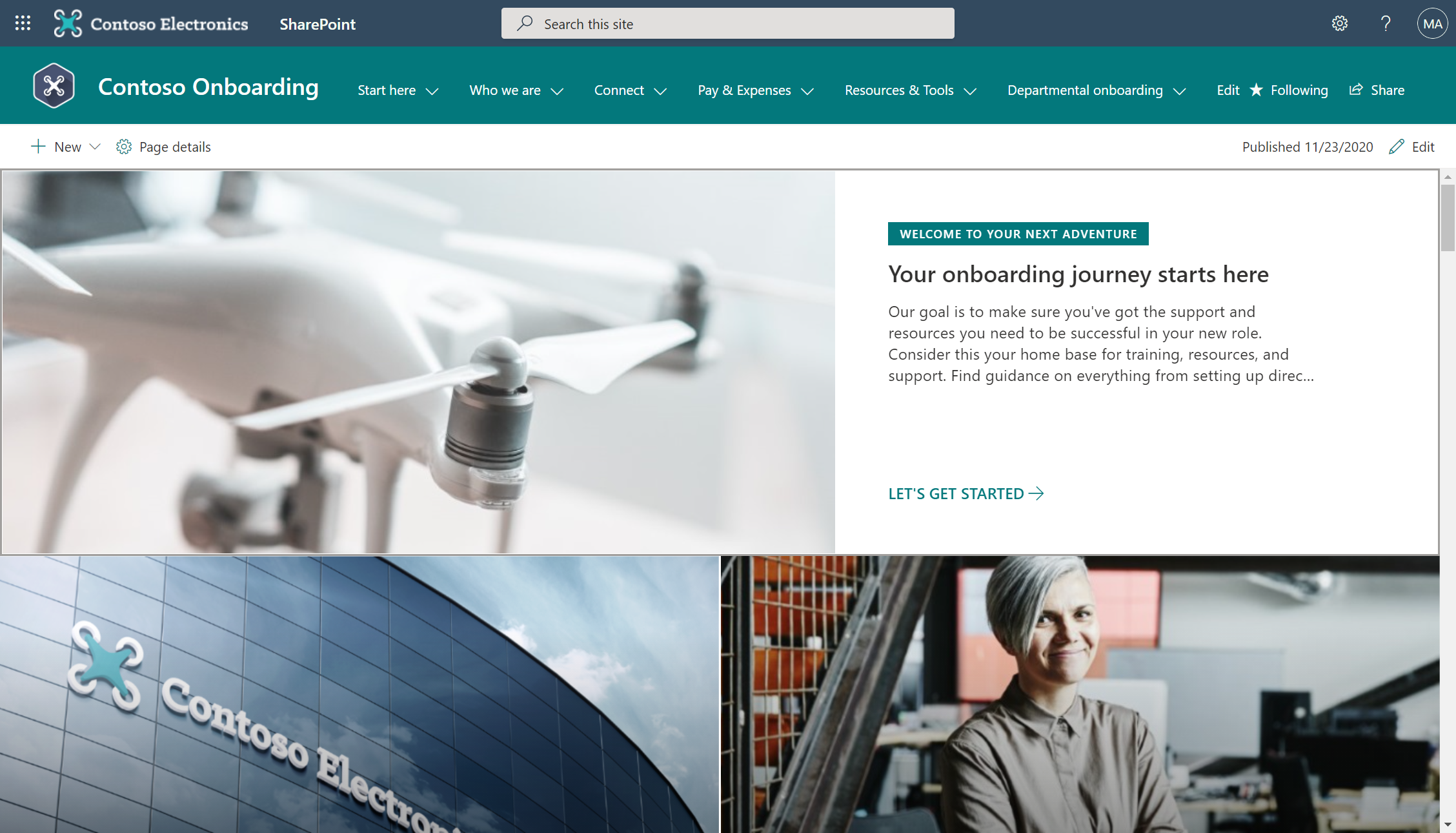 The Corporate Onboarding site gives new hires a structured 30-60-90 day onboarding journey with checklists, leadership profiles, and community connections. Source: Microsoft Learn
Departmental Onboarding Site — Shared by managers and onboarding buddies, this site covers department-specific information: team introductions, departmental culture, role-specific training, and team priorities.
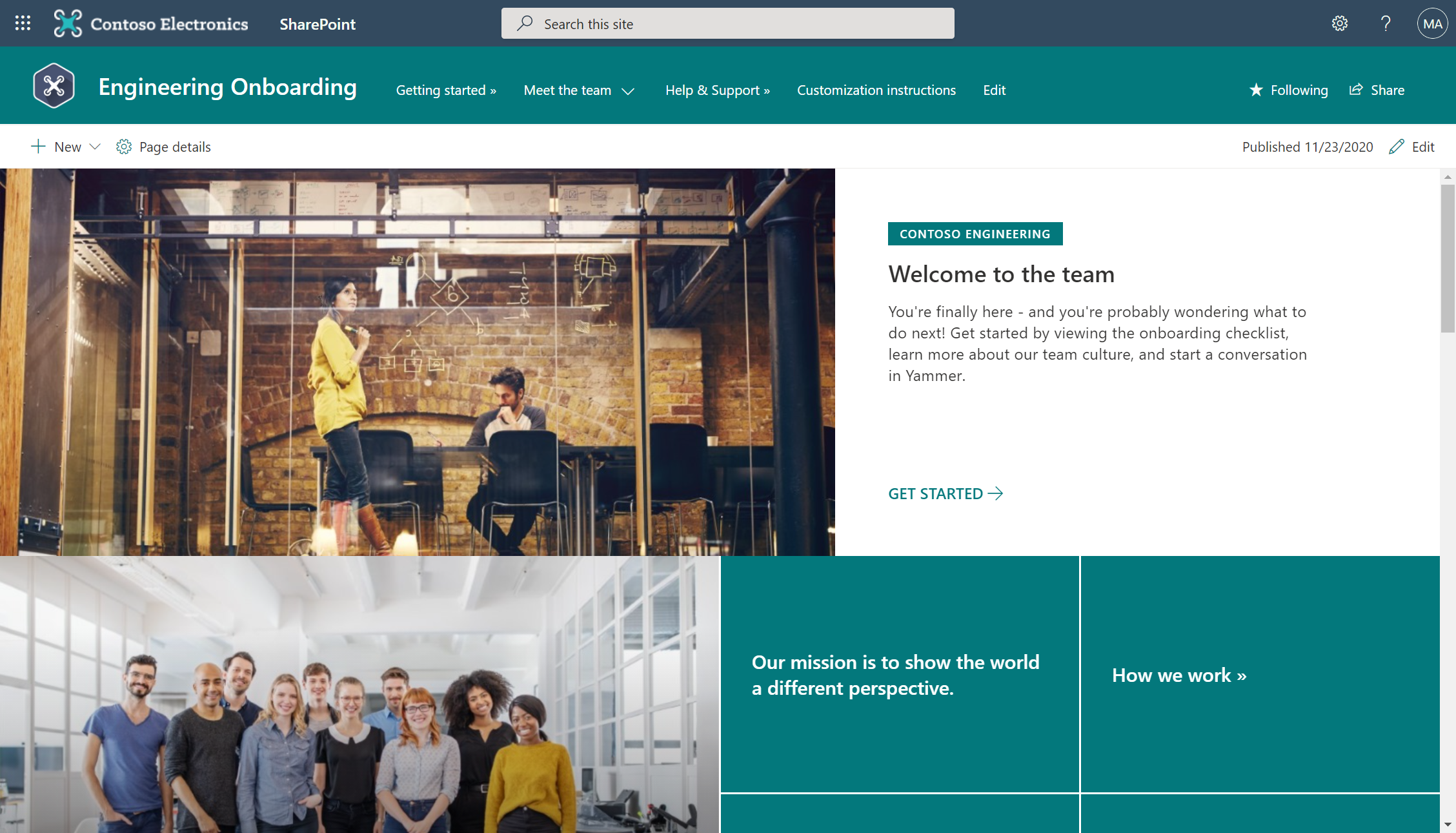 The Departmental Onboarding site connects new hires to their team’s people, priorities, and processes. Source: Microsoft Learn
Microsoft’s research behind this suite is compelling: organisations with a standard onboarding process report 50% greater new-hire productivity, and 69% of employees are more likely to stay three years if they had a great onboarding experience.
Why it stands out: No other template suite covers a business process this comprehensively. The three-tier structure (pre-onboarding, corporate, departmental) reflects real-world onboarding complexity, and the built-in onboarding journey checklist is a genuinely useful feature that goes beyond static content.
Get it: Each site is provisioned separately as a PnP template, then connected via hub site association. Each takes about 20 minutes to provision.
10. Workshop Training Site
Type: Communication Site | Category: Organisation
The Workshop Training Site is Microsoft’s example of a learning and development intranet page. It’s designed to support instructor-led or self-paced training programs, featuring course descriptions, schedules, registration links, and training resources organised in a clean, accessible layout.
The template makes effective use of the Events web part for scheduling training sessions, the Hero web part for featuring current programs, and the Highlighted Content web part for surfacing training documents and resources. It’s a practical example for any L&D team that wants to move training coordination onto the intranet.
Why it stands out: Training and development is one of those intranet use cases that every organisation needs but rarely designs well. This template provides a focused, purpose-built solution.
Get it: Available as a PnP provisioning template through the SharePoint Look Book.
11. SharePoint Success Site
Type: Communication Site | Category: Solutions
This is an intranet site about building your intranet, and it’s one of the most underrated templates Microsoft offers. The SharePoint Success Site is a self-service learning portal that helps site owners, content authors, and end users across your organisation learn how to use SharePoint effectively.
It comes pre-loaded with training content organised into playlists (powered by Microsoft 365 Learning Pathways), covering topics like creating sites, building pages, working with web parts, and managing permissions. The idea is that you provision this site once, customise it with your organisation’s specific guidance and governance policies, and then point all your site owners to it as their go-to resource.
Why it stands out: Most intranet projects fail not because of technology, but because of adoption. This site directly addresses that challenge by giving your organisation a built-in training hub for SharePoint. It also requires the App Catalog, which makes it a good exercise in more advanced SharePoint administration.
Get it: Available as a PnP provisioning template. Requires both SharePoint Online Admin permissions and a configured App Catalog.
12. Workplace Transformation Site
Type: Communication Site | Category: Solutions
The Workplace Transformation Site (also known as the Hybrid Work template) is Microsoft’s answer to the post-pandemic shift toward hybrid and flexible work models. It provides a dedicated intranet space where organisations can communicate their hybrid work policies, share resources for remote and in-office employees, and help teams navigate new ways of working.
The template includes sections for workplace guidelines, technology setup guides, well-being resources, and team collaboration tips. It’s designed as a living resource that evolves as your organisation’s workplace policies change — not a one-time announcement page.
Why it stands out: Hybrid work communication is an ongoing challenge for most organisations, and this template provides a structured, maintainable home for it. It’s especially useful for organisations that are still iterating on their return-to-office or flexible work policies.
Get it: Available as a PnP provisioning template through the SharePoint Look Book.
Bonus: Supercharge Your Intranet with Viva Connections
In 2026, a SharePoint intranet is only half the picture. Microsoft Viva Connections sits on top of your SharePoint home site and extends the intranet experience into Microsoft Teams and mobile devices.
 The Viva Connections desktop experience brings together Dashboard cards, a personalised News reader, and curated Resources — accessible from Teams, SharePoint, or the Viva Suite website. Source: Microsoft Learn
 The Viva Connections Dashboard provides interactive cards for common tasks like approvals, assigned tasks, shift schedules, and more — fully customisable with audience targeting. Source: Microsoft Learn
Once you’ve built your intranet using the examples above, you can connect it to a Viva Connections dashboard that surfaces personalised cards for tasks, news, and resources — giving employees a single, role-specific view of everything they need.
The combination of a well-designed SharePoint intranet and Viva Connections is what Microsoft calls the “intelligent intranet” — and the templates above are the foundation for building it.
Understanding the Building Blocks: SharePoint Site Designs
Before you deploy any of the 12 templates above, it helps to understand the three fundamental site designs Microsoft offers for communication sites. Every template in this guide is built on one of these foundations:
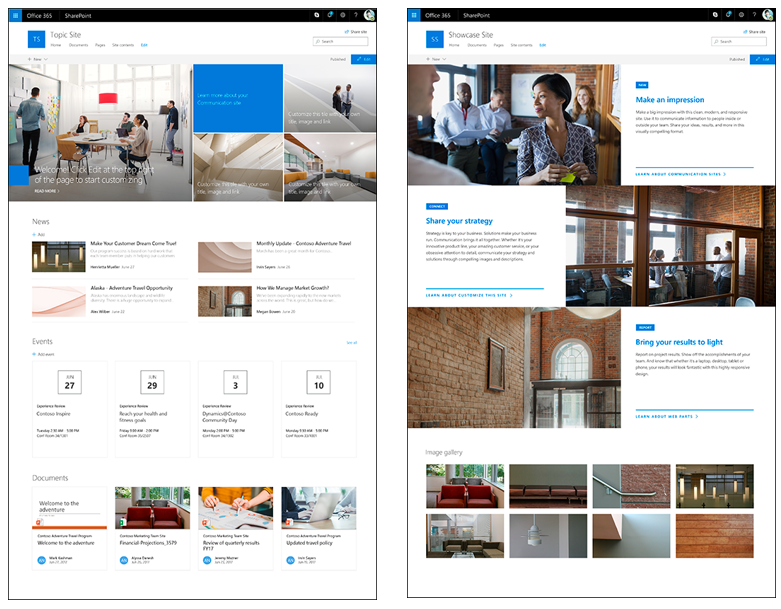 SharePoint’s three communication site designs: Topic (information-rich), Showcase (visual-first), and Blank (build your own). Source: Microsoft Learn
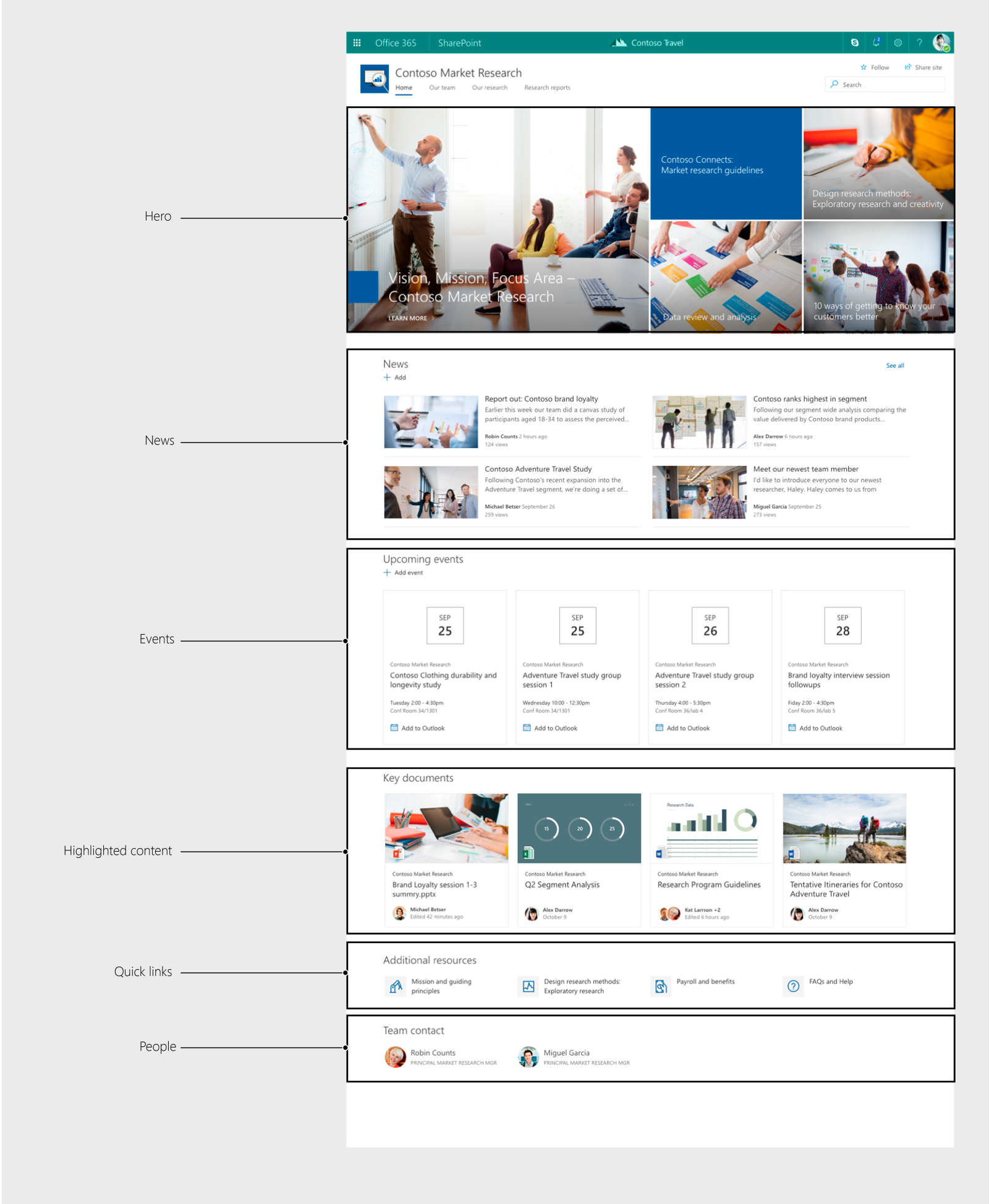 The Topic design is the most commonly used foundation — combining Hero, News, Events, Highlighted Content, Quick Links, and People web parts. Source: Microsoft Learn
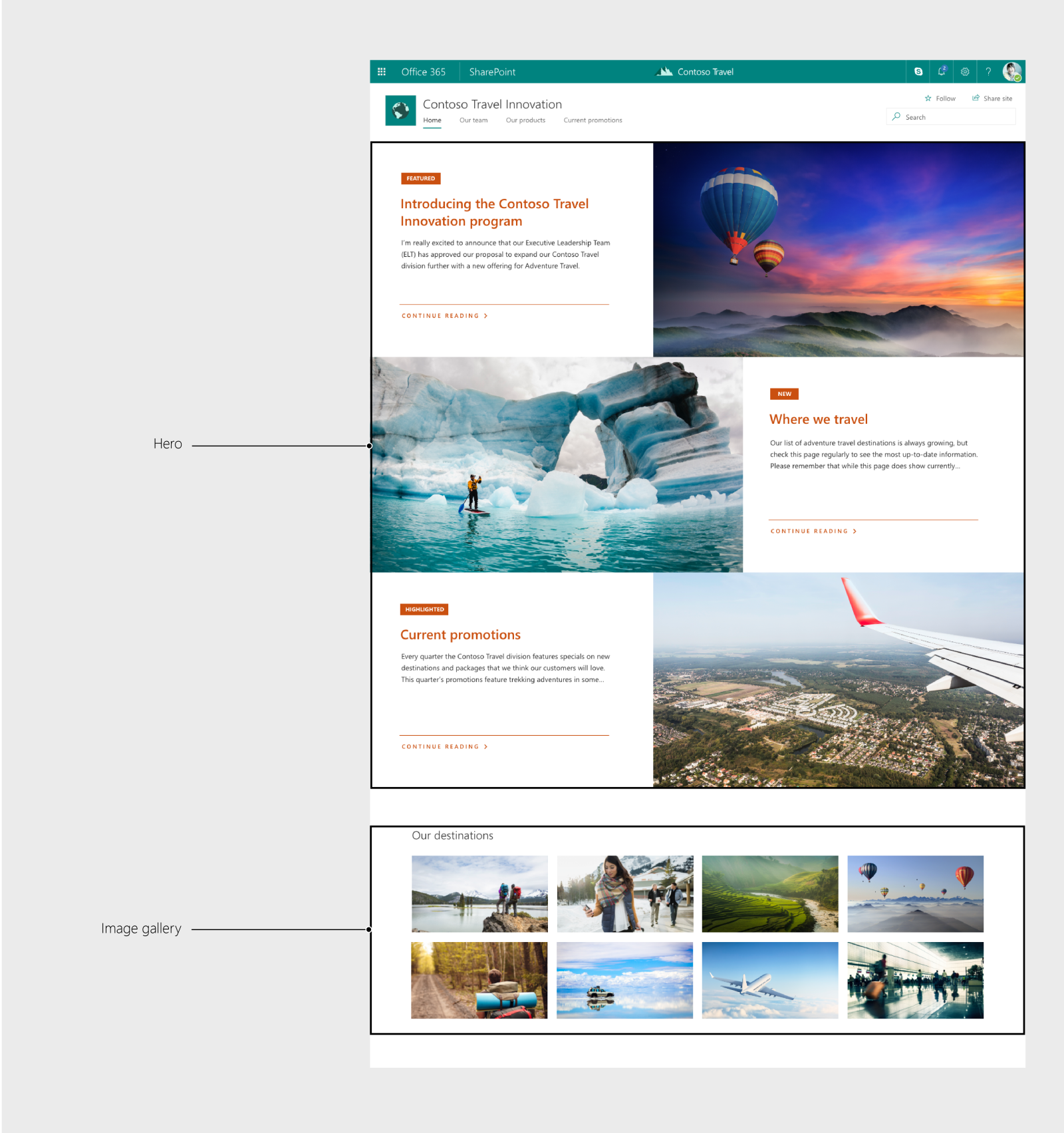 The Showcase design emphasises rich visual content with Hero and Image Gallery web parts — ideal for marketing, events, and brand-forward sites. Source: Microsoft Learn
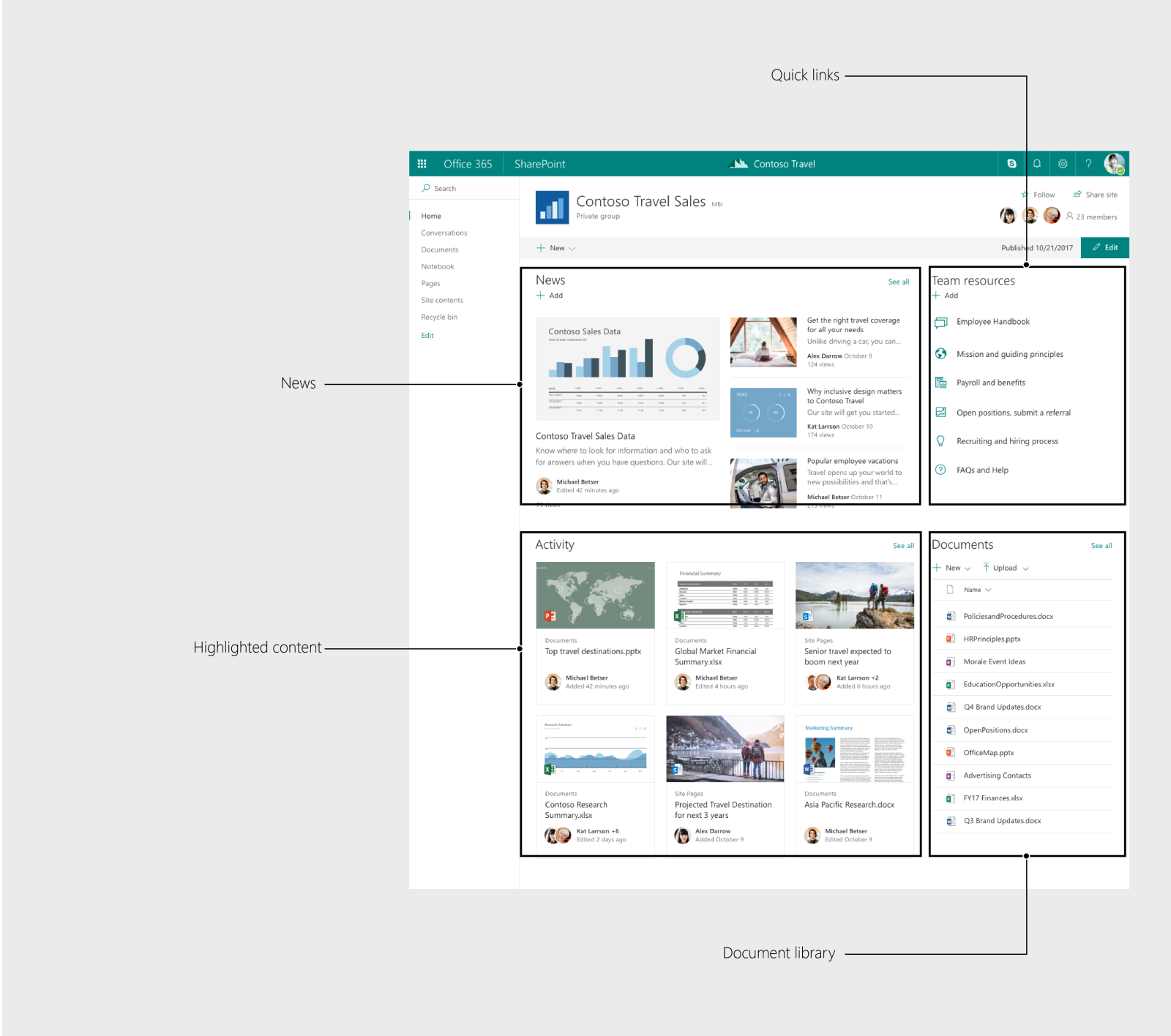 The Team site design is used for collaborative workspaces, featuring News, Quick Links, Highlighted Content, and Document Library web parts. Source: Microsoft Learn
How to Deploy These Templates
All 12 examples above are available through Microsoft’s PnP provisioning system. Here’s how to get started:
- Browse the SharePoint Look Book at adoption.microsoft.com/sharepoint-look-book to preview designs visually.
- Navigate to the PnP templates page on Microsoft Learn for direct download links and configuration parameters.
- Sign in as a SharePoint Administrator — most templates require SharePoint Online Admin permissions.
- Provision the template into your tenant. Most templates take around 20 minutes to deploy and come with sample content, branding, web parts, and navigation pre-configured.
- Customise the site with your own branding, content, and navigation. Every element is fully editable using SharePoint’s modern page editor — no code required.
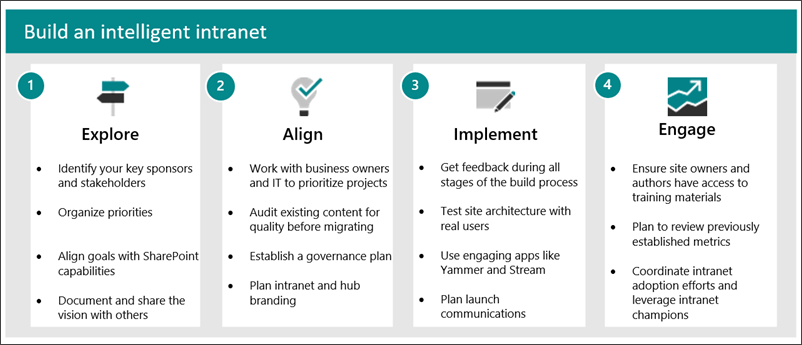 Microsoft’s recommended intranet setup process: Explore what’s possible, Understand and align with business goals, Implement and build, then Engage and manage over time. Source: Microsoft Learn
For organisations that prefer to build from scratch rather than provision a template, Microsoft also provides guided walkthroughs that walk you through recreating many of these designs step by step.
Need a hand? Deploying and customising these templates is straightforward, but getting the information architecture, governance, and branding right takes experience
Final Thoughts
The days of building a corporate intranet from a blank page are over. Microsoft’s SharePoint Look Book and PnP template library give you production-quality starting points for virtually every intranet scenario, from corporate landing pages and department hubs to onboarding suites and crisis communications.
The smartest approach in 2026? Pick the template closest to your goal, provision it, and customise from there. You’ll save weeks of design and development time while starting from a foundation that Microsoft has already optimised for performance, accessibility, and mobile responsiveness.
Every example in this guide is free, officially supported by Microsoft, and ready to deploy into your Microsoft 365 tenant today.
Looking for a Sharepoint Consultancy for Your next Intranet project? Contact us
We also offer other services like power BI solutions