
Microsoft Security Info: How to Update, Add or Reset It
Microsoft security info is the set of methods that proves who you are and gets you back into your account. This guide covers personal and work accounts, resets and business controls.

Key Takeaways
- Personal accounts use account.microsoft.com/security; work or school accounts use mysignins.microsoft.com/security-info.
- Add the new method and confirm it before removing the old one, and always keep two methods that fail in different ways.
- Administrators can choose Require re-register MFA on a user in Microsoft Entra to recover a lost-phone lockout.
- Use security defaults or a Conditional Access policy on Register security information to protect registration itself.
- Review registrations regularly: stale methods are how leavers, lost phones and attackers cause trouble.
Microsoft security info is the set of sign-in and verification methods attached to your Microsoft account, such as the Microsoft Authenticator app, a phone number, a recovery email address, a passkey or a security key. Microsoft uses it to confirm that you are you when you sign in from somewhere new, when you reset a password and when you recover a locked account. To update, add or reset it, you sign in to your account's security page, open the sign-in methods area and change what is listed there. The exact route depends on whether you have a personal Microsoft account or a work or school account.
That distinction causes most of the confusion. A personal account (Outlook.com, Xbox, a Hotmail address) is managed at account.microsoft.com. A work or school account, the kind issued by an employer and managed in Microsoft Entra ID, has its own Security info page at mysignins.microsoft.com, and the organisation's administrators decide which methods you may use. If you cannot get in at all, the fix is different again: a personal user goes through Microsoft's account recovery, while a work user asks their IT administrator to reset their methods.
This guide sets out where to find Microsoft security info, how to add or change each method, what to do after losing a phone, how administrators reset registrations, and how a business should enforce good practice with Conditional Access or security defaults. It is written for UK small and mid-sized organisations, and the product details were checked against Microsoft's own documentation as at October 2026. Microsoft renames portal items from time to time, so where wording matters I say what the page called it when it was checked.
What is Microsoft security info and why does it matter?
Microsoft security info is the list of methods Microsoft can use to verify your identity, and it matters because it is the lock on your account and the key to getting back in. If the list is current, you can sign in, approve a prompt or reset a forgotten password in minutes. If it is out of date, a lost or replaced phone can leave you shut out of email, files and Teams.
Security info does three jobs:
- Two-step verification. After your password, you approve a notification, enter a code or touch a key. This is the main defence against stolen passwords.
- Password reset. If you forget your password, Microsoft sends a code to a registered method or asks you to approve in the app.
- Account recovery. If something goes wrong, the methods on file are how Microsoft tests that you are the owner.
Most account takeovers begin with a phished password. Registered security info is what turns a stolen password into a failed sign-in attempt. Our guide to phishing types, examples and prevention explains how those passwords are usually taken, and why a second factor changes the outcome.
One practical point from supporting UK organisations: security info is the thing people forget about until the day they change handset. Treat it as part of leaving, joining and phone-upgrade routines, not as something to fix when it breaks.↑ Back to Contents
Where do I find my Microsoft security info?
For a personal account, sign in at account.microsoft.com and open the Security tab; for a work or school account, go to mysignins.microsoft.com/security-info. The short link aka.ms/security-info takes you to the same work or school page.
Where is security info for a personal Microsoft account?
Sign in at account.microsoft.com/security, then choose Manage how I sign in. Microsoft's support page, checked in October 2026, describes this as the place to add a new way to sign in or verify. A personal account can hold up to 10 verification methods.
Where is security info for a work or school account?
Open mysignins.microsoft.com/security-info and sign in with your organisation's email address. Microsoft Learn identifies this as the page where users manage their own methods, and aka.ms/sspr as the page for resetting your own password. If you reach a "Keep your account secure" wizard instead, your organisation is asking you to register methods for the first time.
If the page does not look like the descriptions here, your administrator may not have enabled the same experience. Microsoft says as much in Microsoft's guidance for work or school accounts.
Why does it ask me to sign in again before showing it?
Because it is a sensitive page. Microsoft will normally ask you to verify with an existing method before you can change anything. That is deliberate: if someone has only your password, they should not be able to swap your phone number for theirs.
↑ Back to ContentsWhat is the difference between personal and work or school security info?
A personal account is controlled by you; a work or school account is controlled by your organisation. That one difference explains why the same task works in minutes for one and needs a ticket for the other.
| Question | Personal Microsoft account | Work or school account |
|---|---|---|
| Where to manage it | account.microsoft.com/security | mysignins.microsoft.com/security-info |
| Who decides the allowed methods | You, within Microsoft's options | Your administrator, through policy |
| Typical methods | Email, authenticator app, passkey; phone may not be offered | Authenticator app, phone, security key; email and security questions for password reset only |
| If you lose access | Microsoft account recovery | Administrator resets your methods |
| Can Microsoft support reset it for you | No, support agents cannot access or change account details | No, the organisation's admin does it |
The work or school method list is drawn from Microsoft's pages as checked in October 2026. Authenticator app, phone calls and security keys can be used for both two-step verification and password reset, while an email account and security questions work only for password reset. You need another method for two-step verification if you rely on those.
A common mistake is mixing the two worlds. An employee uses a personal Microsoft account to sign in to a work service, or a company registers a licence against a personal address. The result is a login nobody in IT can reset. If your business has accounts like that, tidy them up as part of your Microsoft 365 support arrangements.↑ Back to Contents
How do I add or update Microsoft security info?
Open the correct security page, verify yourself, add the new method, confirm it with the code or prompt Microsoft sends, then remove the old one. Do it in that order, so you are never left with nothing registered.
How do I add security info to a personal account?
- Sign in at account.microsoft.com/security.
- Select Manage how I sign in.
- Choose the option to add a new way to sign in or verify.
- Pick an email address, an authenticator app or a passkey. Adding a phone number may not be available for your account.
- Enter the security code Microsoft sends to the new address, then select Next.
The email address does not have to be yours, but you must be able to read it. Removing or changing existing methods has its own Microsoft support articles, and the current wording is in Microsoft's guidance on personal account security info.
How do I set up the Authenticator app on a work or school account?
The registration wizard works like this, as described by Microsoft in October 2026:
- Select Next to open the "Keep your account secure" wizard. Your organisation's required methods appear in order.
- Install Microsoft Authenticator on your phone and allow notifications.
- Add a work or school account in the app and allow camera access.
- Scan the QR code shown on your computer. If scanning fails, enter the code and URL manually.
- Approve the test notification. The app becomes your default verification method.
- Add a phone number as a second method, choosing text or call, and confirm the code.
- Select Done.
How do I change my phone number or email?
Add the new number or address first, confirm it, then delete the old entry. If your sign-in is currently approved only by the old phone, add the new method while you still have the old one in your hand. Once that phone has been wiped or handed in, you are in the lost-phone situation covered below.
Before you swap handsets
Move the Authenticator app deliberately and test it on the new device before wiping the old one. Register a second method, such as a security key or a second phone, so one lost device never locks you out.
Which sign-in method should I choose?
Choose the strongest method your account and organisation allow, and always register a second, different one as a fallback. The Authenticator app with notifications is the usual starting point for both personal and business use.
| Method | Strengths | Watch out for |
|---|---|---|
| Microsoft Authenticator app | Approve a prompt or use a code; becomes the default during registration | Tied to one phone; move it carefully when upgrading |
| Security key | Physical device, resistant to phishing | Can be lost; register a second one or another method |
| Passkey | No password typed; offered on personal accounts | Availability for work accounts depends on your organisation's policy |
| Phone call or text | Familiar and needs no app | Dependent on signal; weaker than app or key against some attacks |
| Email address | Useful for password reset | Not usable for two-step verification on work accounts; protect that mailbox too |
| Security questions | Password reset only, where allowed | Answers can be guessed or found out; not a second factor |
A practical rule we use when advising clients: register at least two methods that fail in different ways. A phone-based app and a hardware key do not break on the same day. An app and a text message to the same handset do.
What should my administrator think about when choosing which methods to allow?
Decide on the methods you want people to use, then remove those you do not. Be careful, though. Microsoft warns that disabling authentication methods while security defaults are on can lock you out, so test any change with a pilot group before applying it to everyone. Microsoft Learn's page on managing user authentication methods lists the administrator options in full.↑ Back to Contents
What do I do if I lost my phone or I am locked out?
If you have another registered method, use "sign in another way" and then replace the lost one. If you have none, a personal user goes through account recovery and a work user asks their administrator for a reset.
What if I lost my phone and I have a personal Microsoft account?
Try every other method listed on the account first: another email address, another device, a passkey. If none work, use Microsoft's account recovery process. Microsoft is explicit that support agents cannot send password reset links or access or change account details, so there is no shortcut by phoning someone. Have as much detail ready as you can about the account, and do not buy help from third-party "recovery" services, which are a common scam.
What if I lost my phone and I have a work or school account?
Contact your IT administrator or helpdesk. They can remove the lost device's registrations and let you register again, as the next section explains. If your company has no one who can do this, that gap is worth fixing. It is one of the reasons businesses move to managed IT support, and it is why a defined route for a 24/7 IT support helpdesk matters for staff who travel or work shifts.
What should I do straight away after losing a phone?
- Tell IT, or change your password from another device, so the account is not relying on a lost handset.
- Ask for sessions to be revoked, so any signed-in device has to authenticate again.
- Re-register Authenticator on the replacement phone.
- Check the account's recent sign-in activity for anything you do not recognise.
If your employer has enrolled phones in device management, the lost handset can often be locked or wiped remotely. Our explainer on Intune and mobile device management covers how that works.
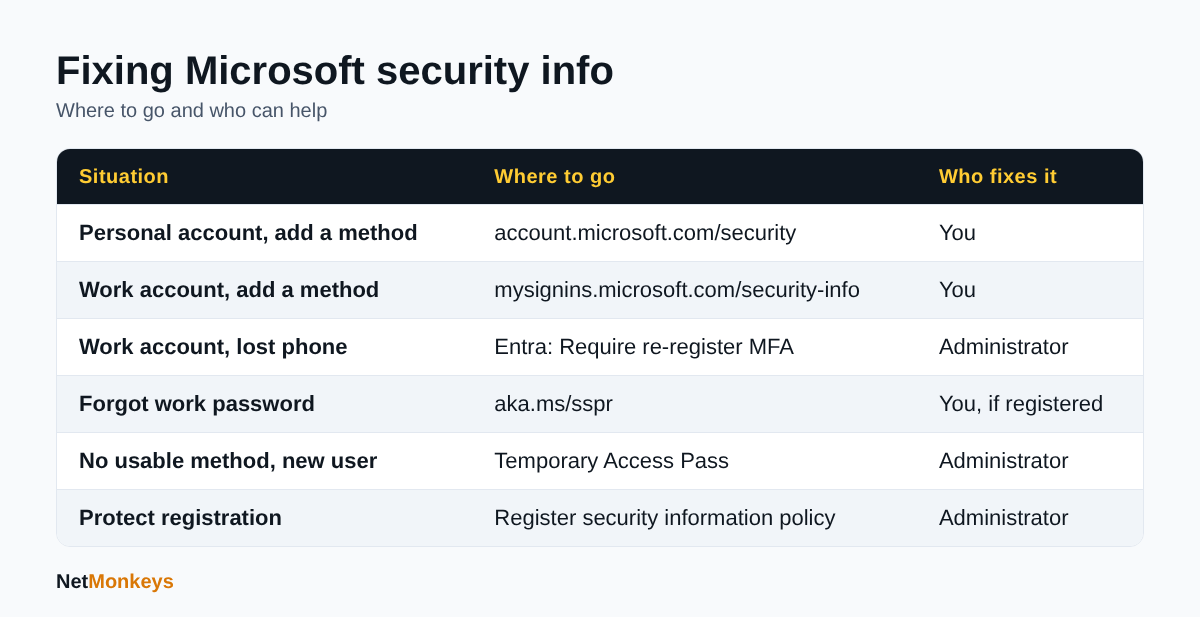 Where to manage Microsoft security info and who can fix common problems, as at October 2026.
How does an administrator reset someone's security info?
In Microsoft Entra, an administrator with at least the Authentication Administrator role opens the user, selects Authentication methods and chooses Require re-register MFA. That is the standard answer to "I have a new phone and cannot approve the prompt".
According to Microsoft Learn's page on managing user authentication methods, checked in October 2026, the route is Entra ID, Users, select the person, then Authentication methods. At the top of the window the administrator can choose:
- Reset password, which assigns a temporary password that must be changed at next sign-in.
- Require re-register MFA, which deactivates hardware OATH tokens and deletes the user's phone numbers, Microsoft Authenticator apps and software OATH tokens. The user is prompted to register a new method at next sign-in.
- Revoke sessions, which invalidates refresh tokens so the user must authenticate again in active sessions and applications.
The same page lets administrators add a phone number or email as a method, but advises that users should register their own numbers and that public profile contact fields should not be used for MFA.
What is a Temporary Access Pass and when should it be used?
A Temporary Access Pass is a time-limited credential an administrator issues so a person can register new methods when they have nothing else to sign in with. Microsoft's Conditional Access guidance recommends it for registration from any device or location, and notes that it does not work for guest users. It is much safer than reading out a password over the phone.
How should the helpdesk verify who is asking?
Reset requests are an attractive route for attackers, who ring the helpdesk pretending to be a locked-out colleague. A sensible process needs three things: a callback to a known number or a manager's approval, a record of who approved the reset, and a rule that resets are never done on the strength of a text or email alone. The same logic applies to your own supplier: if you cannot reach your admin settings at all, read our article on what to do when an IT provider will not give admin access.↑ Back to Contents
How does self-service password reset connect to security info?
Self-service password reset (SSPR) lets people reset their own work or school password using the methods they registered, which only works if those methods are current. The registration page is shared: Microsoft's combined registration lets a user register once for both MFA and SSPR.
For users, the practical points are:
- Register at least one method that works for password reset, ideally two.
- Remember that email and security questions count for reset only, not for sign-in verification.
- Reset your own password at aka.ms/sspr when needed, rather than raising a ticket.
For businesses, SSPR is one of the best returns on a small amount of set-up. Password resets are a large share of routine helpdesk calls in most organisations, and each one pulls a technician away from other work. The catch is that SSPR is only as good as the registration behind it. Staff who joined years ago and never registered methods will hit a wall on the day they forget a password.
How do I get everyone registered?
- Switch on combined registration so MFA and SSPR are registered in one step.
- Send a clear instruction, with screenshots, to everyone. Include the mysignins.microsoft.com/security-info address.
- Use a registration policy to prompt people at sign-in (covered next).
- Report on who has not registered and chase them individually.
Registration and the day-to-day running of the tenant sit naturally alongside your Microsoft 365 administration, and it is a sensible item for a monthly checklist.↑ Back to Contents
How can I make my business register security info safely?
Use security defaults if you have no Conditional Access licence, and a Conditional Access policy on the "Register security information" user action if you do. Both stop security info being a self-service free-for-all.
What are security defaults?
Security defaults are preconfigured Microsoft Entra settings that give a baseline level of identity protection at no extra cost. As described in Microsoft Learn's security defaults documentation, they require all users to register for MFA, require MFA for administrators, block legacy authentication protocols such as IMAP, SMTP and POP3 basic authentication, and require MFA for Azure management. Users register with the Authenticator app with notifications. Microsoft says the registration grace period was removed from 29 July 2024, so registration is now required immediately.
They suit organisations on the free Entra ID tier. They are all-or-nothing and cannot be customised, and Microsoft says organisations using Conditional Access must disable them first. To turn them on, a Conditional Access Administrator (or higher) goes to Entra ID, Overview, Properties, Manage security defaults.
What is a Conditional Access policy for registering security information?
It is a policy that controls when and where people may register or change methods. Microsoft Learn's Conditional Access guidance for registering security information sets out the steps, checked in October 2026:
- Create the policy at Entra ID, Conditional Access, Policies, New policy.
- Include All users and exclude your emergency access accounts and guest users as appropriate.
- Under Target resources, User actions, select Register security information.
- Under Conditions, Locations, include any location and exclude all trusted locations.
- Under Grant, require an authentication strength or MFA.
- Start in Report-only mode, review the results, then switch the policy on.
The effect is that someone on an untrusted network must prove themselves with MFA, or a Temporary Access Pass, before they can register or change a method. That blocks the attacker who has a stolen password and tries to add their own phone. Microsoft also notes that from 6 July 2026, policies targeting this user action will apply to Windows Hello for Business and macOS Platform SSO registration, so any existing policy should be tested in report-only mode.
Keep your break-glass accounts
Exclude two cloud-only emergency access accounts from these policies and store their credentials securely. A badly scoped registration policy can lock the administrators out along with everyone else.
| Option | Licence needed | Control | Best for |
|---|---|---|---|
| Security defaults | None, available on the free tier | Fixed baseline | Very small organisations starting out |
| Conditional Access | At least Microsoft Entra ID P1 | Detailed rules, exclusions, report-only testing | Organisations with varied users and devices |
| Risk-based policies | Microsoft Entra ID P2 | Responds to sign-in and user risk | Higher-risk or regulated environments |
What else does Microsoft security info mean for a business?
In a business setting, "Microsoft security info" usually means the wider identity and threat protection picture: Entra ID for sign-in, Defender for detection, and the policies that tie them together. The registration page is just the front door.
How do Entra ID and Defender fit together?
Entra ID decides who is allowed in and how they prove it. Microsoft Defender products watch for what happens next: malicious email, compromised devices, suspicious behaviour after sign-in. A strong registered method reduces the chance of a bad sign-in, and endpoint detection catches the cases that still get through. For many organisations the follow-on step is managed EDR services, where someone is watching the alerts out of hours.
What is a worked example of getting it wrong?
This is an illustrative scenario, not a real client. A 60-person firm registers everyone for MFA when it moves to Microsoft 365, using phone text messages. Three years on, staff have changed handsets and numbers, several have left, and nobody reviews registrations. A user clicks a phishing link and enters their password on a fake sign-in page. The attacker now has the password, and because the registration page is not protected, they sign in and add their own phone as a method. The user's own phone still works, so nothing looks wrong for days.
The fixes are routine and inexpensive: a registration policy that demands MFA or a Temporary Access Pass, alerts when new methods are added, a joiners-movers-leavers checklist, and phishing-resistant methods for administrators and finance staff.
What should a UK organisation do next?
- Run a review of who has registered which methods, and retire stale entries.
- Move administrators and high-risk roles to security keys or equivalent.
- Include identity controls in your Cyber Essentials preparation, which expects multi-factor authentication where available.
- Commission a cyber security audit if you are unsure how your tenant is configured.
- Read our cybersecurity best practices and risks facing small businesses guides for the wider picture.
Microsoft security info: what to do now
Microsoft security info is the dependable route back into your account, so keep it current. Personal users should check account.microsoft.com/security and hold at least two methods; work and school users should visit mysignins.microsoft.com/security-info; administrators should know how to require re-registration, issue a Temporary Access Pass and enforce a registration policy.
A short monthly routine does most of the work: review registrations, remove leavers, check that administrators use phishing-resistant methods, and rehearse a lost-phone reset once so the helpdesk is not learning on the day.
Who wrote this and how it was checked
Written by Caleb Adoh, Growth Marketing Manager at NetMonkeys, a Manchester-headquartered Microsoft Solutions Partner with offices in Nottingham and London. Menu names, URLs and policy steps were checked against the cited Microsoft support and Microsoft Learn pages as at October 2026. Microsoft changes portals often, so confirm wording on screen before making changes to a live tenant.
If you would like a second pair of eyes on how your organisation handles sign-in, registration and resets, talk to the NetMonkeys team.
↑ Back to ContentsFrequently Asked Questions (FAQs)
What is Microsoft security info?
Microsoft security info is the list of sign-in and verification methods linked to your account, such as the Authenticator app, a phone number, an email address, a passkey or a security key. Microsoft uses them to confirm your identity when you sign in, reset a password or recover an account that you are locked out of.
How do I update my Microsoft security info?
For a personal account, sign in at account.microsoft.com/security and choose Manage how I sign in. For a work or school account, go to mysignins.microsoft.com/security-info. Add the new method first, confirm it with the code Microsoft sends, then remove the old one so you are never left without a working option.
Where is the Microsoft security info page for work accounts?
The page is at mysignins.microsoft.com/security-info, which is also reachable through the shorter link aka.ms/security-info. Sign in with your organisation's email address. The methods you see depend on what your administrator allows. If the page looks different from Microsoft's guidance, your organisation may not have enabled the same registration experience.
How do I reset Microsoft security info if I lost my phone?
On a work account, ask your administrator to select Require re-register MFA for your user in Microsoft Entra, then register again at next sign-in. On a personal account, try every other listed method first, then use Microsoft's account recovery. Microsoft support agents cannot access or change account details for you.
How many security info methods can I add to a Microsoft account?
Microsoft's support page, checked in October 2026, says a personal account can hold up to 10 verification methods. You can add an email address, an authenticator app or a passkey, while a phone number may not be available for every account. Work and school limits depend on your organisation's policy.
Can my administrator see or reset my security info?
Administrators with at least the Authentication Administrator role can view a user's authentication methods and choose Require re-register MFA, Reset password or Revoke sessions. They can also issue a Temporary Access Pass. Microsoft advises that users register their own phone numbers instead of having administrators enter them.
Are security defaults enough to protect our Microsoft security info?
Security defaults give a useful free baseline: MFA registration for all users, MFA for administrators and blocked legacy authentication. They cannot be customised, so organisations with Conditional Access licences usually move to a policy on the Register security information action, tested in report-only mode before it is switched on.
What happens if Conditional Access blocks security info registration?
Users outside trusted locations must meet the policy's grant control, such as MFA or authentication strength, before registering. If someone has no usable method, an administrator can issue a Temporary Access Pass. Temporary Access Pass does not work for guest users, and break-glass accounts should always be excluded from the policy.
Speak to a NetMonkeys specialist
Want an expert to review your setup, or to put this guide into practice with you? Our team can help.
Book a conversation