
IT Support Handover Checklist: What to Collect Before You Switch
A practical checklist of the accounts, licences, backups and documents your business should hold before an IT provider relationship ends.

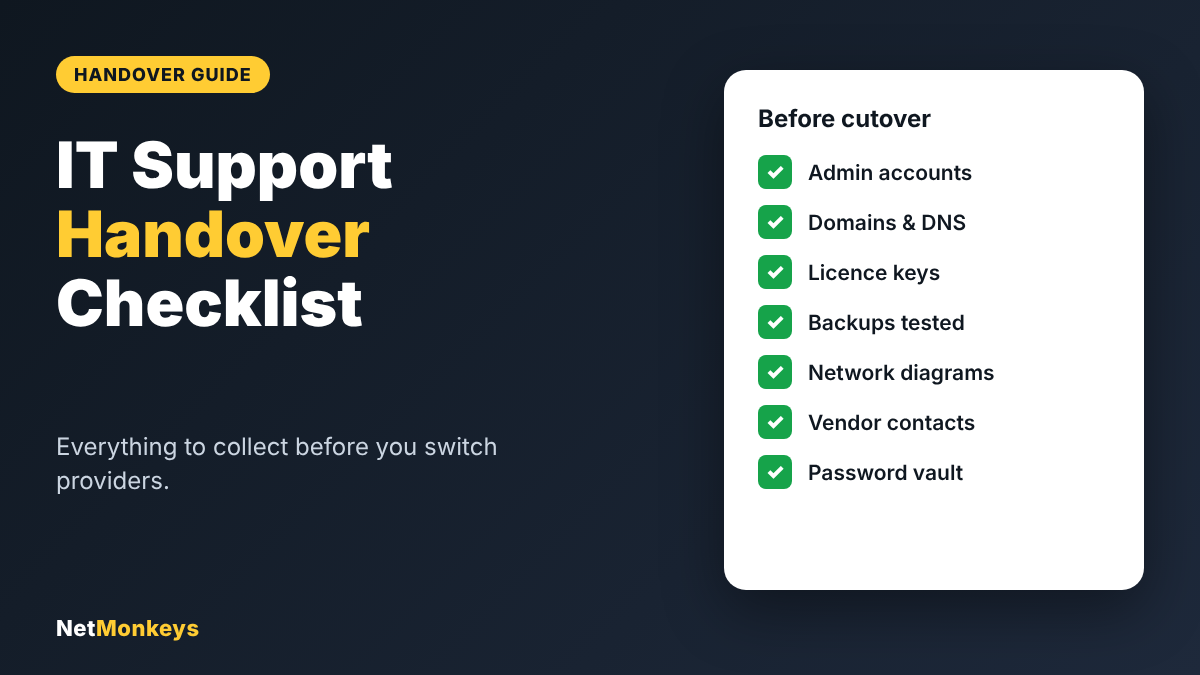
Key Takeaways
- A handover checklist should be agreed in writing before you give notice, not after the relationship has soured.
- Your business should be the registered owner of its domains, cloud tenants and licences. Confirm this first.
- A backup only counts once a restore has been tested and recorded.
- Rotate administrator credentials in a planned order once access is confirmed, so your own team is never locked out.
- Nine areas cover most handovers: admin access, domains, cloud tenants, network, backups, licences, hardware, security tools and documentation.
When an IT provider relationship ends, the quality of the handover decides whether the change is quiet or painful. Most disruption comes from missing information: an admin account nobody can find, a domain registered in a former employee’s name, or a backup that nobody has tested.
This IT support handover checklist sets out what to collect, who should supply it and how to confirm it. It works alongside our guide on how to switch IT support providers without downtime, which covers notice periods, timing and cutover. Use the two together: the guide gives you the plan, and this checklist gives you the evidence.
What an IT Support Handover Covers
A handover is the structured transfer of knowledge, access and responsibility from one IT provider (or employee) to the next. It is not a single meeting. It is a set of tasks with named owners, run in a sensible order, with a record of what was received.
Done properly, it covers five things: access to systems, ownership of accounts and licences, the state of backups and security tooling, technical documentation, and open work such as unresolved tickets. If any of these is missing at cutover, the new provider starts blind.
The same list applies whether you are moving between two managed providers, bringing support back in-house, or moving from an internal hire to an outsourced IT support service.
↑ Back to ContentsBefore You Start: Contract and Ownership
Read your agreement before anything else. Look for the notice period, any clause on returning data and documentation, and any wording that says who owns accounts, licences and configuration records. Some contracts require a handover period; others say nothing, which makes a written handover request more important.
Then check ownership directly rather than relying on what the provider says. Log in to your domain registrar, your Microsoft 365 or Google Workspace admin centre and your licence portals, and note whose name and email address sit against each. If the provider is the registered owner of something your business depends on, ask for it to be transferred before you serve notice.
Do this first
Ask for a named, written list of what will be handed over and by when. A simple email is enough, and it gives you a reference point if the handover stalls.
The IT Support Handover Checklist
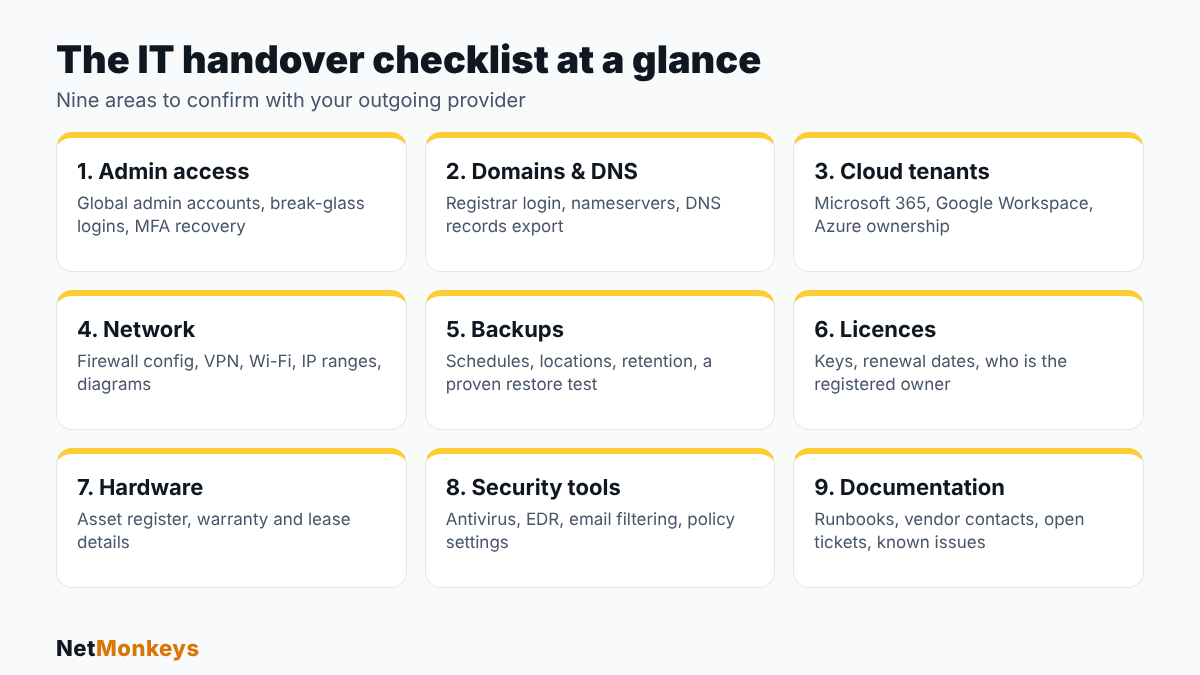
Use the table below as your working document. Add a date and a name against each line as it is received and verified.
| Area | What to collect | How to verify |
|---|---|---|
| Admin access | Global administrator accounts, break-glass accounts, MFA recovery methods | Sign in yourself and confirm you can manage users and settings |
| Domains and DNS | Registrar login, nameserver details, full export of DNS records | Confirm the registrant is your business and the email is one you control |
| Cloud tenants | Microsoft 365, Google Workspace and Azure ownership and billing details | Check the tenant admin list and billing contact |
| Network | Firewall configuration, VPN settings, Wi-Fi details, IP ranges, network diagram | Compare the diagram with the equipment on site |
| Backups | Schedules, storage locations, retention periods, encryption keys | Run and record a test restore |
| Licences | Licence keys, subscription lists, renewal dates, registered owners | Reconcile against invoices and vendor portals |
| Hardware | Asset register, warranty and lease details, serial numbers | Spot-check devices against the register |
| Security tools | Antivirus, EDR, email filtering and policy settings, alert contacts | Check consoles are accessible and alerts will reach the new team |
| Documentation | Runbooks, vendor contacts, open tickets, known issues, change history | Ask the incoming provider to review it for gaps |
Handling Credentials and Admin Access Securely
Credentials are the most sensitive part of any handover, so treat them accordingly. Do not accept passwords in a spreadsheet or by email. Ask for them to be transferred through a password manager, or reset them in a call with the new provider present.
Keep at least two break-glass administrator accounts for each major platform, stored securely and excluded from day-to-day use, so that one failed sign-in policy cannot lock everyone out. Where the outgoing provider holds multi-factor authentication devices or recovery codes, move those to named people in your business.
Once your access is confirmed, rotate passwords and remove the old provider’s accounts and remote access tools in a planned order. This is also the right moment to check against the five technical controls in the NCSC’s Cyber Essentials scheme: firewalls, secure configuration, security update management, user access control and malware protection. If you want independent assurance, our Cyber Essentials service can guide you through certification.
↑ Back to ContentsBackups and Recovery Evidence
A backup is only useful if it can be restored. Ask for the schedule, the storage location, the retention period and the last successful restore test. If there is no test on record, run one before the outgoing provider leaves, while the people who built the system are still available.
Check what is actually protected. Servers and file shares are often covered, while cloud mailboxes, SharePoint sites and line-of-business databases are missed. The NCSC’s small organisations guidance on backing up data is a useful reference point for what a sound approach looks like.
If your move involves changing platforms, treat it as a project in its own right. Our data migration services and cloud migration services cover planning, parallel running and validation.
↑ Back to ContentsLicences, Domains and Vendor Accounts
Licences and domains cause more handover disputes than any other area, because they are renewed quietly and rarely reviewed. Build a single list of every subscription, domain, certificate and vendor support contract, with renewal dates and the account owner for each.
Where a provider resells licences, such as Microsoft 365, confirm how a change of provider is handled. Your tenant stays with you, but billing and administrative relationships may need to be moved. Our Microsoft 365 support team handles these transfers regularly and can explain what changes and what does not.
Also list line-of-business software, internet and telephony suppliers, printer and copier contracts and any hardware warranties. These often sit outside the main IT agreement, but they still need a named contact.
↑ Back to ContentsDocumentation Your Outgoing Provider Should Supply
Good documentation lets an incoming engineer work out how your environment fits together without guessing. Ask for the following, and accept that some of it may need to be created during the notice period:
- Network diagram. Sites, internet connections, firewalls, switches, wireless and VPN links.
- Server and application list. What runs where, who depends on it and how it is backed up.
- User and device list. Accounts, licences assigned, devices and their owners.
- Change history. Recent changes, planned projects and any workarounds in place.
- Open tickets and known issues. So that unresolved work is not lost at cutover.
- Vendor and escalation contacts. Who to call for the internet, telephony, software and hardware suppliers.
The Handover Sequence
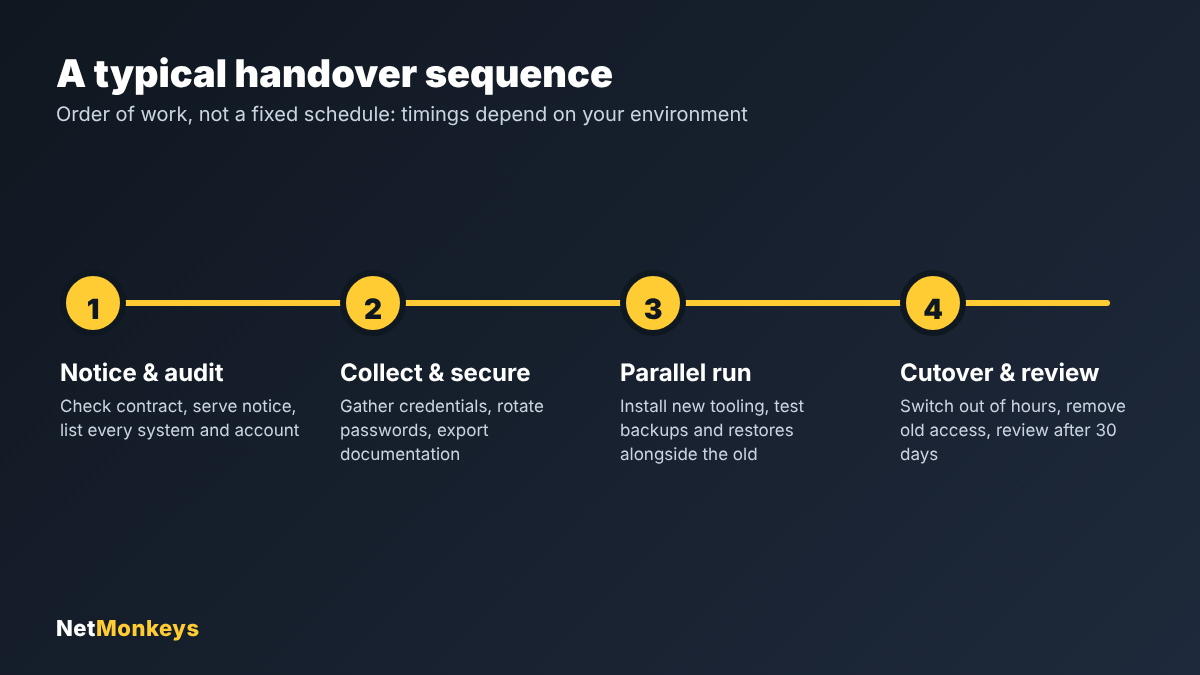
Timings vary with the size and complexity of your environment, so treat these as an order of work rather than a fixed schedule. Start with the contract and an audit of what exists. Move on to collecting and securing access and documentation. Run the new provider’s tooling and backups alongside the old ones, then cut over out of hours and review after the first month.
Our guide to switching IT support providers without downtime covers notice periods, hostile handovers and the first 30 days in more detail.
↑ Back to ContentsRed Flags During a Handover
- Vague answers about ownership. If the provider cannot say who owns a domain or tenant, find out yourself straight away.
- Credentials only in the provider’s tools. Access that depends on the provider’s password manager or remote tool will disappear when they do.
- No restore evidence. A backup job that reports success is not proof of recovery.
- Undocumented workarounds. Scripts, scheduled tasks and manual fixes that exist only in someone’s head.
- Delays and new conditions. Requests that stall once notice has been served. Escalate in writing and cite the contract.
Choosing the Right Incoming Partner
A good incoming provider will run the handover with you rather than leave it to the outgoing team. Ask how they audit an unfamiliar environment, how they verify backups and how they handle out-of-hours cutover. If your IT is a mix of onsite and remote work, check that they offer both remote IT support and an out-of-hours helpdesk.
For many businesses, managed IT support is the natural destination, because monitoring, patching, security and helpdesk sit under one agreement. If you are weighing it against an internal hire, our comparison of outsourced IT support vs in-house IT sets out the cost and risk trade-offs.
Local presence matters for hardware and site work. NetMonkeys supports businesses through an IT support company in London, an IT support company in Manchester, an IT support service in Leeds, an IT support company in Birmingham and an IT support company in Nottingham, along with field engineer cover across other UK cities.
↑ Back to ContentsConclusion
A handover goes well when it is planned, written down and verified. Agree the list early, confirm ownership yourself, test the backups, secure the credentials in a sensible order and keep a dated record of everything received. Those steps turn a risky change of provider into a routine project.
If you are planning a move and want a second pair of eyes, contact NetMonkeys for a free handover review. We will audit what you hold, identify the gaps and run the transition with you.
↑ Back to ContentsFrequently Asked Questions (FAQs)
What is an IT support handover checklist?
It is a written list of every account, system, licence, backup and document your outgoing IT provider must pass to you or your new provider when a contract ends. It records what has been handed over, who confirmed it and when, so nothing is missed at cutover.
What should my IT provider hand over when I leave?
At minimum: administrator accounts and recovery details, domain and DNS access, cloud tenant ownership, firewall and network configuration, backup settings and restore evidence, licence keys, a hardware asset register, security tool settings and network documentation.
Who owns the admin passwords and licences?
In most cases your business should be the registered owner of its domains, cloud tenants and licences, even if a provider manages them. Check your contract and the account records. If a provider is the registered owner, ask for a transfer before you give notice.
How long should an IT handover take?
It depends on the size and complexity of the environment. A small office may complete the key steps in a few weeks, while multi-site or regulated businesses often need longer. Our guide to switching IT support providers without downtime explains typical timings.
What if my outgoing provider refuses to cooperate?
Start with written requests that cite your contract, then gather proof that your business owns the accounts. Your new provider can often contact domain registrars and software vendors directly to prove ownership and reset access. Take legal advice if the provider still refuses.
Should I change passwords after the handover?
Yes. Once access is confirmed, rotate administrator passwords, reset multi-factor authentication where possible, remove the old provider’s accounts and revoke remote access tools. Do this in a planned order so you do not lock out your own team.
Can I use this checklist for an in-house to outsourced move?
Yes. The same areas apply when an internal IT employee leaves or when you move work to an outsourced provider. Ask the departing person to document accounts, systems and known issues before their last day.
Related IT Support Services
Outsourced IT Support
A dedicated team that runs your IT for a predictable monthly fee.
View Service → ServiceManaged IT Support
Monitoring, helpdesk, security and projects under one agreement.
View Service → LondonIT Support London
Managed IT support for businesses across London.
View Service → ManchesterIT Support Manchester
Managed IT support from our Manchester headquarters.
View Service → LeedsIT Support Leeds
Managed IT support for businesses across Leeds and Yorkshire.
View Service → BirminghamIT Support Birmingham
Managed IT support for businesses across the West Midlands.
View Service →